# Importing Data
The Imports tab serves as a hub for managing data imports from various business applications and allows you to transform this data into sheets
1. Let’s create a new import from Facebook Ad Account
2. Selected the Connected data source or connect a new one
3. Here is the sheet with the import result. You can apply the additional filters or export to Google Sheets, save as a .csv file, or connect with Copilot
# Connecting Multiple Accounts
Conduit allows connecting multiple accounts for a single integration. To connect the first one, just navigate to the Connections tab, find an integration of interest and click on the 'Connect' button
Each additional account can be connected by clicking on the marked icon
#### Managing Sub Accounts
Some ad networks or business apps integrations allow having multiple ad cabinets or sub accounts under one single account entity. You can manage them by navigating to the Connections tab and pointing your mouse to the 'Set Up' button
Here you can manage the different sub-accounts/ad cabinets
# How To Invite Additional Team Members to Your Account
Conduit allows inviting additional team members to your account. To do so, point the mouse to the bottom left corner of the page and click on the ‘Team Management’ option
Click on the ‘Add member’ option, assign the permissions level (owner, admin, or editor), and enter the email
Sharing a direct sign-up link In case your colleague is not receiving an invitation link by email, you can simply copy the direct sign-up link and share it with the teammate.
# How Does the Trial Work?
When you sign up, you'll enjoy a complimentary 7-day trial period with us. You won't need to enter any payment information during the trial, ensuring you won't incur any charges until you choose to subscribe and add your payment details.
After seven days, you will encounter a paywall with an offer to choose a pricing plan. You can select one of the available plans or continue using the free version of Conduit.
# What's a Table/Data Schema?
A **Table/Schema** refers to a structured format designed to hold specific types of data, such as leads, contacts, or advertisements. Many integrations include several data tables/schemas to organize different sets of data.
In our terminology, a **data table/schema** is a predefined set of data types or data attributes that we import from a business application.
To explain what a table/schema is, let’s consider an example with the **Amazon integration**. This integration includes multiple data tables/schemas for various types of data, such as:
* **Product Ads**
* **Seller Ads**
* **Selling Partner Orders**
Each of these tables/schemas is designed to retain and structure specific types of data relevant to Amazon’s business operations.
By using tables/schemas, we ensure that the data is organized in a way that makes it easy to manage, analyze, and utilize for business insights.
# Number of Sub-Connections
You can connect as many additional accounts under one data connection, as you want. For example, you can connect 20 GA4 accounts or 20 Facebook Ads accounts
# Default Time Range for Downloading Data
By default, the time range for downloading data is set to 90 days. This is to ensure efficiency, as downloading all data from the creation of an account, especially for clients with thousands of business accounts, could take hours or even days.
However, you can extend the time range up to 4 years using our UI.
Please note that some APIs may have limitations on time ranges.
# Conduit Data Lake
The data is stored in our data lake because many of the platform's APIs do not respond quickly enough to real-time requests.
We temporarily transfer the data to our AWS data lake. This step is essential due to the slow performance of many data source APIs, which are incompatible with Copilot and dashboard requirements.
We can host on-premise, using your or your client's AWS server. If you'd be interested in discussing that, please ping us via the support chat or [support@getconduit.app](/)
# Conduit vs Boost.Space
Both Conduit and Boost share the feature of being able to sync with data sources, yet they serve different purposes.
Boost is all about connecting different apps. For instance, when a new order is placed in Shopify, Boost can automatically create a contact in Pipedrive, with data syncing happening instantly.
Conduit, on the other hand, focuses on report generation and automating data analyst tasks. It's like having a daily task where Conduit pulls data from Shopify to determine product costs, gathers marketing data from Facebook and accounting systems, and then compiles all this information to calculate the true ROI for products. Essentially, Conduit automates the work typically done by data analysts.
Due to the complexity of data analysis, we've enlisted the help of AI. This AI takes user queries and crafts analysis programs that are then executed on our server, making data analysis more accessible.
# Conduit vs Reportz.io
Both Conduit and Reportz.io offer the ability to integrate with various data sources and display KPIs through a dashboard.
However, Conduit distinguishes itself by embodying the role of an AI Data Analyst coupled with a dashboard feature. This means that users can articulate their data visualization needs directly to Conduit in plain English, which then employs Large Language Models (LLMs) to craft programs tailored to fulfill those specific requests. These programs are executed on Conduit's servers, with the outcomes neatly visualized on the dashboard.
* The incorporation of AI significantly expands the capabilities of dashboards. Users are empowered to pose complex queries, such as:
* Generating forecasts for 2024 based on historical data.
* Identifying each email in the leads list, linking it to a purchase in Shopify, and calculating the average time from registration to purchase.
Analyzing patterns in Page URLs to identify and display those that have experienced the most significant decreases in impressions and clicks.
Conduit not only generates responses to these inquiries but also allows users to construct dashboards based on these insights.
Moreover, Conduit provides a wide array of AI-driven automations, such as "visit every lead's webpage and provide a summary of their business and save to a spreadsheet", thereby further broadening the scope of possibilities for dashboard analytics.
# Conduit vs Google Looker Studio
While Conduit and Google Looker Studio both create dashboards, they employ distinct methodologies to achieve this.
The primary difference between Conduit and Google Looker Studio lies in how you configure your reports.
In Looker Studio, you can define SQL queries, apply filters, adjust dimensions in the UI, and customize widgets within a report.
In Conduit, you utilize natural language to define your requirements, and AI generates the report accordingly. For instance, you could simply state, "Take my data.csv, display rows for clients, columns for each month, and format ROI as a percentage," and the AI fulfills your request. Then, with a click of the "Add to Dashboard" button, you've created a table view on your dashboard.
Looker tends to have higher user requirements, expecting familiarity with data manipulation concepts in general and SQL specifically, which may not be ideal for business users. From my experience, successful Looker deployments were typically designed by data analysts rather than business users.
Another limitation of Looker is its lack of ETL capabilities. If data source consolidation is necessary, another tool must be employed, significantly increasing the overall cost compared to Conduit.
Conduit, on the other hand, is designed with business users in mind, requiring no SQL knowledge. Even if your organization already utilizes Looker, Conduit remains valuable as it empowers business users to create ad hoc reports without relying on time-consuming reconfigurations of reports or extensive communication with data analysts.
However, it's important to note that Conduit provides less control over the visual aspects of reports. "Polished" reports are built by exporting data to a spreadsheet and applying formatting (such as colors and fonts) there.
# Use Case: AI-powered Text Extraction
#### Introduction to Conduit's AI-powered Text Extraction
Scanning documents can sometimes introduce challenges with unstructured text data. Conduit steps in as the solution, offering powerful AI capabilities for post-processing scanned text. Once you've scanned your documents, Conduit empowers you to go beyond mere recognition.
Imagine you have the results of recognizing various scanned documents, where the scanned textual data is within table cells. Your goal is to transform this unstructured text into a table format, with essential information neatly organized into separate columns.
**Key Post-Processing Capabilities:**
* Data Structuring: Conduit's AI assistant effortlessly transforms raw, scanned text into structured data, making it easier to analyze and interpret.
* Entity Recognition: Identify and extract specific entities or information from the scanned text, streamlining the retrieval of essential details.
* Multi-column Mapping: Seamlessly map diverse data points within the scanned text to multiple columns, enhancing the granularity of your structured data.
**A couple of brief examples showcasing the functionality of Conduit's AI post-processing capabilities:**
**Invoice Data Extraction**: Conduit excels in extracting critical details from scanned invoices, seamlessly mapping data like billing amounts, dates, and vendor information to distinct columns. This ensures quick and accurate processing for financial analysis.
**Contract Parsing**: Transform lengthy, unstructured contract texts into organized tables with Conduit's post-processing. Identify key clauses, parties involved, and contract dates, allowing for efficient contract management and review.
**Survey Responses Analysis**: Post-process scanned survey responses using Conduit to categorize and map textual answers to multiple columns. This simplifies sentiment analysis and aids in understanding trends and patterns within survey data.
Now, let's dive into the detailed instructions!
#### Selecting Essential Blocks for the Text Extracting Workflow
{% embed url="" %}
1. Log into your [Conduit account](https://app.getconduit.app/auth/login/?next=/).
2. Navigate to the [Workflows](https://app.getconduit.app/r/workflows/) tab and click on the 'Create New Workflow' button tab and click on 'Create New Workflow.'
3. Start by adding a 'Pull CSV Import' block to your canvas.
4. Attach to this block the link to your sheet.
5. Drag and drop the 'Ask AI (for each row)' block.
#### Configuring the Ask AI block
The Ask AI block in Conduit serves as an intelligent intermediary, prompting the AI to extract specific information from raw data. Placed in the workflow, it enables precise data mapping by instructing the AI on what to extract and where to place the results. This block has three configurable parameters:
**Dataset:** The dataset containing the digital documents. **Input Column:** The column that contains the data you want to process. This is typically the column where your raw digital data is located. **Output Column:** The column where you want the processed data to be placed.
#### Prompts Crafting Techniques
You have the flexibility to define precise instructions for the AI by crafting natural language commands, commonly referred to as prompts. In the following example, we'll attempt to map the order details to several columns within the same sheet
So, here is how our raw data looks like

Let's compose the following prompt for extracting date & time of the order and run the workflow.
`Extract the date of the order from the text in the dataset. Just print the date of the order {value}`
**Important:** Please do not modify the {value} parameter and bear in mind, that it would be necessary to keep it within your prompt
If everything were done correctly, you should receive a notification on the bottom right corner of the screen, once the workflow is successfully performed. And here are the results of our workflow

#### Mapping the multiple cells
In the previous example, we've already mapped the date and time of the order to the Date column. Our goal for now is to modify that workflow to map the customer's name, shipping address, and the full name of the fulfilling employee into the separate columns
To achieve this, you can add several Ask AI blocks in a Workflow, assigning to each:
* Source Dataset
* Input Column
* Output Column
* Prompt: Input prompt text
**Important:** It's crucial to have for each subsequent Ask AI block, the previous Ask AI block selected as the dataset.

Now, let's add to the canvas the block, that would be responsible for extracting the customer's name and use the following prompt:
`Extract the full name of the customer and print it as is {value}`

Then, drag to the canvas another block, that'd stand for extracting the shipping address and this prompt:
`Extract the shipping address of the customer and print it as is {value}`

Now, we need to add the final Ask AI block to the sequence. This one would handling extracting the employee name. And here is the prompt for it:
`Extract the full name of the employee who fulfilled the order and print its name as is {value}`

Add the 'Save to Google Sheet' block and link it with the output sheet (this could be the same sheet with your raw data)

We're almost set. Let's click on the 'Run Workflow' button and wait for the workflow to finish its job. Here is the output of the workflow:

# Use Case: Track Ad Campaign Performance with Conduit
#### Identifying and Evaluating Low-Performing Campaigns
In this use case, we have a dataset that comprises lists of advertising campaigns and their daily metrics like marketing spend.
Our goal is to identify and track Ad Campaigns with the lowest performance. Let’s have the AI reformat the sheet, to display days, as separate columns:
Now, our task is to filter the campaigns with 0 conversions in the three days in a row. Click 'Reply' to refine the dataset from Copilot's response and input this prompt *‘Filter the campaigns that have 0 conversions for not less than 3 days’*
#### Automation capabilities
Now, we aim to optimize this process, enabling AI to automatically check the dataset of interest and notify us about low-performing campaigns via Slack. To achieve this, we would need to create a new Workflow on the corresponding tab:
${vimeo}Ask AI about a Dataset
1. Drag the 'Ask AI about the dataset' block.
2. Input the name of the dataset of interest from the Copilot tab.
3. Drag the 'Create Report / Aggregate' block and choose the source dataset.
4. Conclude the workflow with either the 'Send CSV to Slack' or 'Send CSV to Email' block.
There you have it – a fully equipped workflow at your fingertips!
# Use Case: Enhancing Project Management with Copilot
This use case shows how to use Copilot for basic tasks with project management data and CRM systems.
#### Source dataset overview
The dataset we use has information for agency operations, including project specifics, product details, project statuses, and start dates (launch dates).
Project
Product
Mode of Sale
Partner
Project Status
Actual Start
Vision Enterprises
UXI
On-prem
CloudTech Solutions
In Progress
January
Nexus Innovations
EC
MSP
ConnectX Solutions
Pending Training
March
DataMinds
Wi-Fi
On-prem
TechHub Dynamics
Pending
May
Quantum Networks
Switch, NAC
On-prem
NetworkPro Alliance
Pending Meeting
June
Alpha Synergy
EC, UXI
MSP
Innovate Systems
Lost
August
Synergetic Solutions
NAC
MSP
IntegrateX Partners
In Progress
September
ByteCrafters
Wi-Fi, Switch
On-prem
DataLink Innovations
Pending
October
ProActive Ventures
EC, NAC, Wi-Fi
MSP
CloudConnect Dynamics
Pending Meeting
November
QuantumLeap Tech
EC, Switch
On-prem
NexGen Solutions
Pending Training
December
Elite Connectors
NAC
MSP
SecureNet Integrations
In Progress
February
Fusion Dynamics
UXI, Wi-Fi
On-prem
Connectify Systems
Pending
April
...
...
...
...
...
...
Now, as we connect this dataset to Copilot, let's explore the use case.
#### Find data
Easily find projects based on their current status, launch date, or partner, enabling a quick overview of ongoing initiatives.
Let’s have the Copilot pull the projects, that are currently in progress: *Show me the projects with “In Progress” status*
Here are our results:\
Now, let’s pull the pending projects with the launch date scheduled for February: *Show me the in proggres projects scheduled for February*
\
The Results screenshot
#### Basic Statistics
Copilot allows examination of how partners contribute to project success. Let’s identify, who was the most performing partner:

# Use Case: Using Conduit for Financial Analysis
#### Intro
In this use case, we'll explore the capabilities of Conduit for financial analysis, particularly focusing on transactions and expenditure data.
#### P\&L Report
Our goal is to conduct a financial analysis by creating a basic Profit & Loss report. For this example, we'll use the following table, as our primary dataset. This table stores some financial data, related to real estate management
Date
Year
Property
Category
Amount
Payee
Description
2023-08-01
2023
Oakwood Manor
HOA
250
Oakwood HOA
Monthly dues
2023-08-05
2023
Maple Gardens
Insurance
150
HomeGuard Insurance
Property Insurance
2023-08-10
2023
Elm Heights
Mgmt Fee
300
Elite Property Mgmt
Management Services
2023-08-15
2023
Pine Ridge
Rent
1200
Pine Ridge Rentals
Monthly Rent
2023-09-01
2023
Cedar Residences
HOA
220
Cedar Residences HOA
Monthly dues
2023-09-05
2023
Birch Towers
Insurance
180
TowerGuard Insurance
Property Insurance
2023-09-10
2023
Willow Estates
Mgmt Fee
350
Willow Property Mgmt
Management Services
...
...
...
...
...
...
...
Also, we’d like to transform the data output into the following format:
* Categories as rows
* Years as columns (each year represented in a separate column)
Now, let’s craft a prompt for doing so:
*Please create a P\&L. Please create a separate row for each category of transactions. Create a column for each Year.*
Now let's run the prompt and view the results:

# Use Case: Use ChatGPT with your data
Integrate your spreadsheet or live app data with the ChatGPT-4 API for advanced mathematical calculations, extracting data, unstructured text analysis, serving as your personal financial and data analyst.
Our AI works in two modes: Data Analyst and Generalist
Data Analyst: is an exact and precise analysis of the data - no hallucinations. By entering prompts in plain english language the user is able to give commands to AI on how the output dataset needs to look like. Using the "Data Analyst" role for AI allows for handling data of any volume without restrictions.
Generalist: is used to identify trends, generate projections and work with open data.
# Use Case: Build financial models from raw transactional data and generate P\&L statements.
You can link your spreadsheet containing a list of payments or transactions to AI and write a query describing the desired outcome.
Here are some examples of queries you can make to AI:
1. Create a P\&L. Create a separate column for each year. For each Category of transactions create a row.
2. Find growth for the full period for every client. Also average monthly revenue value.
3. Show days when Fact CPA and Goal CPA gap more than 15%.
# Use Case: Marketing data analytics
Using the AI significantly accelerates the processing of large volumes of marketing data.
Here are some examples of queries you can make to AI:
1. Show days when Fact CPA and Goal CPA gap more than 15%. Show date, campaign, and the gap.
2. Identify campaigns with bad performance. For every campaign find days when it runs. For every day show Conversions. Show days as columns and campaigns as rows. Show rows where cells in the dataset is zero at least 3 columns in a row.
3. Find pattern in Page URLs and show me patterns that saw the most decline in impression and clicks. I need a pattern only one level deeper than /content/. Ignore subsequent patterns in urls. For every pattern show the pattern, decline in Impressions, decline in Clicks. Sort by Impressions decline.
4. Create a dashboard. create a row for the "Impressions" metric. first column is for the most recent week. the second column is for the earlier week. 3rd column is comparison of the 1st and second columns. add a row for the "Clicks" metric. first column is for the most recent week. the second column is for the earlier week. 3rd column is comparison of the 1st and second columns.
# Use Case: Using data science frameworks using your data in spreadsheets Low-Code
You can formulate a question that requires statistical methods, and our AI will generate a Python program to address it. This program will run in a secure sandbox, accessing only your data.
The output will be one or more tables that you can further analyze in your spreadsheet.
# Use Case: Custom Dimensions for Ad Operations
Group data by dimensions that matter to your business and have the ability to analyze down to the creative level.
To group data this way, you need additional dimensions.
For example, you may work with several different agencies and want to create an aggregate report for these agencies. However, Facebook’s ad platform doesn’t provide specific dimensions for these agencies.
Fortunately, Conduit can create new dimensions for your agencies by extracting and processing keywords and other data from Facebook campaigns.
# Use Case: Custom dimensions for E-Commerce
Group data by dimensions that matter to your business.
For example, you can create additional dimensions, which does not present in your ecommerce platform of choice - like, for example, some additional types of products: snack,merchandise, experiences, private parties, and tickets.
Conduit can create new dimensions by extracting and processing keywords and other data from ecommerce platforms or payment gateways.
# Use Case: Extract invoices from PDF
By customizing your prompts, you can instruct AI to gather and analyze data from various text sources, such as PDFs.
You can upload PDF and text files containing invoices from suppliers. AI will extract data about vendors and all line items with their amounts.
This structured data can then be loaded into a spreadsheet.
# Use Case: Export data from SaaS applications to your spreadsheet
Our product integrates with 500 B2B SaaS applications, including QuickBooks and NetSuite, as well as various databases and APIs.
This allows you to automatically update your spreadsheet with live data.
# Use Case: Online store and a physical retail locations consolidated
You can sell your products or services on multiple platforms simultaneously: for example, on Shopify and in physical locations.
By using Conduit, you can combine sales data into a single report.
# Use Case: Pull data from Advertisement platforms to a spreadsheet
Conduit is able to load a user’s Google ads campaign into a spreadsheet and then help to analyze wasted spend and keywords.
# Use Case: Consolidation of data received as separate files, for example, separate Excel reports
#### Consolidation of data obtained as Excel reports
If your partners send you reports via email, you can use Conduit to consolidate such reports into a single dataset.
Additionally, Conduit will standardize the columns and normalize dates or product names.
# Use Case: Names, IDs, SKUs normalization
Let's say, you sell several different variants of products, including bulk sales. Each variant has a separate SKU. However, you only want to see the main SKU in your reports and not the variants.
To accomplish this, you can create an SKU conversion table in a spreadsheet, and based on the table, Conduit can transform codes and quantities in the reports.
# Use Case: Integrating Conduit with a custom CRM using SSO/OAuth2
You can integrate Conduit into your app as an IFRAME and utilize your own SSO/OAuth2 protocols. For access to a developer account, please contact .
# Use Case: Chat Bot for Your Data
You can transform your spreadsheet into a data source for your chatbot. Visitors to your website or your colleagues can then ask questions through a Slack or Microsoft Teams channel.
The AI will respond to questions using the data, providing answers in the form of a table, plain text, or graph.
# Use Case: Display Net sales On a Dashboard by Subtracting Ad spend from Total Sales
### Begin by creating a workflow
Set up a new Workflow and name it 'Sales after Ad Spend'
### Aggregate Ad Spend across Ad Networks
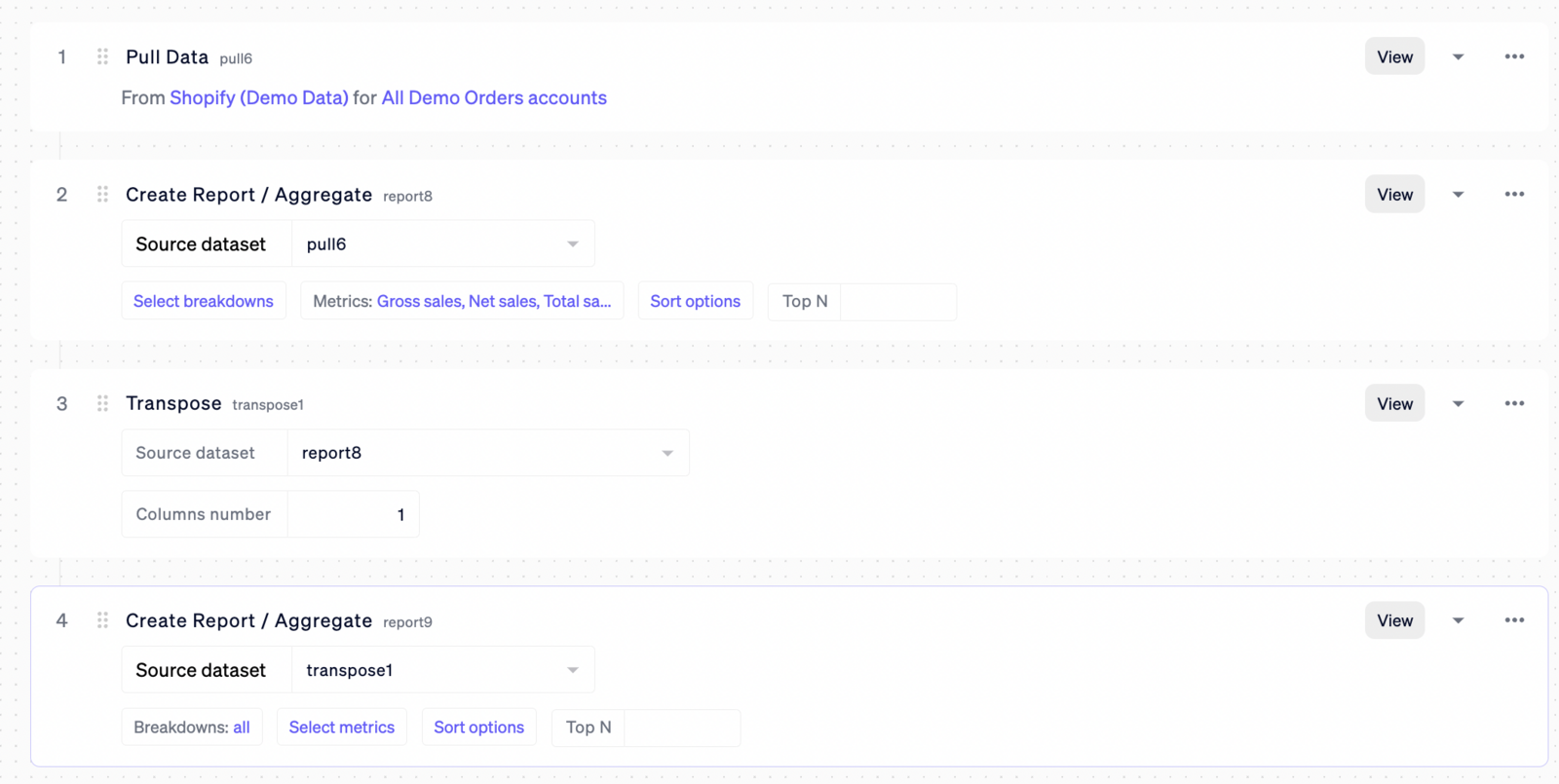
Start with summing up the Ad Spend from all advertising networks. For the first network, Facebook, use the "Pull Data" building block.
In this block, specify the integration name, select the business accounts (option to select all), and rename the building block to 'raw\_facebook.'
#### Focus on Ad Spend Only
Since we are interested only in the total ad spend, use the "Create Report" building block and rename it to "total\_facebook."
To remove all dimensions, open the breakdown list and click "Clear all," leaving the dimensions list empty.
Then, select the 'Spend' metric
And, review the results
Here is what we should see, as our spend:
#### Repeat for Additional Networks
For each advertising network, add a "Pull Data" block and strip all dimensions to leave a single line indicating the total ad spend.
#### Combine Ad Spend Data
To consolidate the ad spend across networks, use the "Union" building block, renaming it "total\_adspend." Ensure this union includes only the datasets with dimensions removed.
### Incorporate Sales Data
Pull the sales data using another "Pull Data" building block and remove all dimensions here as well.
### Merge Ad Spend and Sales Data
Combine the Ad Spend and Sales data into a single dataset using an additional "Union" building block.
\
\
The resulting dataset should have two columns.
### Create Net Sales Metric
\
Use another "Create Report" building block, named "Sales after Ad Spend," to derive the net sales metric.
Include the "Add Metric" child building block to define the metric name, type, and formula using the previously created columns.
### View and Validate the Result
Click the "View" button to confirm that the dataset now includes the required metric.
### Display the KPIs on a new Dashboard
1. Open the dashboard screen.
2. Create a new dashboard
3. Select the Workflow created earlier.
4. Specify the dataset within the workflow that contains all three metrics.
5. Click "Create" to finalize the dashboard setup.
# Use Case: Conduit for Healthcare Applications
#### Data Sharing with the AI
Conduit does not transmit actual data to AI models. With the traditional LLM systems like ChatGPT, you would send a CSV file containing data along with the question. However, with Conduit, the process is different and involves three key steps:
1. **Sending Metadata Description**: Conduit sends a description of the table's metadata, which includes the structure and types of data in the columns.
2. **Formulating the Question**: The question itself is sent to the AI.
3. **Requesting a Python Script**: A request is made for a Python script that will generate the answer.
In this way, Conduit only shares metadata, not the actual data, with the large language model (LLM).
**Controlled Access to Internal Data**
Moreover, access to internal data is stringently controlled within Conduit. Here’s how it ensures data security:
* **Authentication and Authorization**: Conduit uses robust authentication and authorization mechanisms to safeguard your internal data. It integrates with your data systems through SQL and APIs, ensuring that different users have different access levels.
* **User-Specific Data Retrieval**: When a user asks a question, the LLM generates a program to answer it. Conduit then provides the user's identity to your internal data API, which returns only the data that the user is authorized to see.
* **Executing the Program**: Conduit runs the generated program on the subset of data that the user is permitted to access, ensuring that the response is based on authorized data only.
**Mitigating Risks of Sharing Sensitive Information**
The system's design minimizes the risk of clients or patients sharing sensitive information. While this depends on specific use cases, the combined effect of the first two points ensures a setup that significantly reduces the potential for unauthorized access or exposure of sensitive information. By sharing only metadata and tightly controlling access to actual data, Conduit provides a secure and compliant environment for data interaction.
# Data Retention Policy
Data Retention Policy
We retain a snapshot of your historical data for easy comparison against current performance, without having to re-run imports. The information is stored in our data lake because many of the platform's APIs do not respond quickly enough for real-time requests.
For example you're compiling a report on advertising. Ad platforms APIs are slow. So to expedite the process, instead of fetching fresh data for each request, we temporarily store it in a cache. The stored data is kept for a duration of one or more years.
This detail is crucial when preparing a report that spans beyond a year. In such cases, please reach out to us, and we will extend the storage period to three years.
**Data retention follows a rolling principle:**
If you buy the 2 years of data for example we are in 2024:
In Y2024 you account stores data: Y2024 In Y2025 you account stores data: Y2024 and partially Y2025 In Y2026 you account stores data: Y2024 and Y2025 and partially Y2026 In Y2027 you account stores data: Y2025 and Y2026 and partially Y2027
It's also important to mention that when the data source is disconnected, any cached data is promptly deleted. You have the option to request a complete archive of your data prior to the expiration of the retention period.
# How Conduit Complies with GDPR?
#### What is GDPR?
[The General Data Protection Regulation (GDPR) 2016/679](https://gdpr-info.eu/) is one of the most powerful privacy protection laws, specifically enacted to protect European Union (EU) citizens’ data. GDPR essentially empowers EU citizens with control over their personal data.
Importantly, the GDPR applies to any company or person that processes or stores information about people who live in the European Union. In other words, your company does not need to be located in the EU to be subject to GDPR. It applies if you store data about any natural person in the EU. The GDPR distinguishes between data 'controllers' and 'processors'. With respect to data about EU citizens, if your product or service captures and stores that data then you are likely the 'controller' of that data. You may also use other services — such as Conduit — to further process and store that data. In such a case, Conduit would be a 'processor' of that data.
As a controller of data, you are responsible for ensuring that processors of your data also meet requirements for GDPR and that those requirements are contractually obligated. Generally, this is accomplished with a data processing addendum or agreement.
#### Is Conduit GDPR compliant?
Yes, all products and services of Conduit are GDPR compliant.
#### How can I request user data to be deleted?
Our Data Protection, Security and Compliance teams work tirelessly to ensure your data is protected to the highest standard, and so we comply with privacy laws such as GDPR.
You can request the data deletion via the chat widget. Or, alternatively, you can email us at ****
#### Where can I send GDPR requests not related to deletions?
For all other GDPR requests not related to deletion, please email us at
# Security
#### Compliance
**SOC2 - Service Organization Controls (Soc2) (Type II) Trust Services Principles**
SOC2 compliance ensures that Conduit has controls in place to process and manage customer’s data. Compliance shows the excellence of controls in the realms of security, availability, and confidentiality.
**HIPAA - Health Insurance Portability and Accountability Act**
HIPAA is a federal law that requires the creation of standards and controls to protect electronic protected health information (ePHI) from being disclosed.
**ISO 27001 - ISO 27001:2013 Certification**
ISO/IEC 27001 is an international standard for information security management systems (ISMS). Certification shows that an organization has put in place a system to manage risks related to the security of data owned or handled by the company, and that this system respects all the best practices and principles within this International Standard.
**ISO 27018 - ISO 27018:2019 Certification**
ISO/IEC 27018 It is an add-on to ISO 27001 and is an international standard on privacy in cloud computing services.
**Health Data Hosting**
Conduit is HDS (Hébergeur de Données de Santé) certified. Conduit customers are required to comply with applicable data protection legislation and local regulations with regards to personal health information. Customers that work with or in the French healthcare industry must comply with the PGSSI-S (global information security policy for the healthcare sector) and are required to implement a health information system in compliance with the PGSSI-S.
**CSA - Cloud Security Alliance**
CSA is a not-for-profit organization that put together best practices for a company to follow to help ensure a secure cloud computing environment.
# Writing data to spreadsheets: Overwrite and Update
Conduit offers two distinct methods for writing data to spreadsheets: Overwrite and Update.
**Overwrite Method:** In this approach, Conduit clears all existing content within the spreadsheet before writing new data. This method is straightforward but removes any previous information.
**Update Method:** This method preserves existing data, appending new rows at the spreadsheet's end. It's particularly useful for adding more columns and applying specific formatting without losing existing data.
To manage data updates efficiently, Conduit introduces a unique column, the RowUpdateId, placed at the table's extreme right. This column is essential for tracking whether a row has already been included in the spreadsheet. In Update mode, the presence of the RowUpdateId column is mandatory. Absence of this column triggers an error:
*"The RowUpdateId column is missing. Please ensure this column is not removed from the spreadsheet."*
Upon encountering this error, there are two solutions:
1. Export the data to a new, empty spreadsheet. Conduit will automatically generate the RowUpdateId column.
2. Manually add the RowUpdateId column. Note, this option may lead to duplicates if the spreadsheet already contains data.
You can hide RowUpdateId.
# Using Formulas in Spreadsheets
Conduit offers two ways to transfer data to spreadsheets:
Building block “Save dataset to Google Sheets”
* Formulas
* In this article, I will talk about using formulas.
Conduit supports two formulas to be used in Google Sheets.
* **REPORT** - Place a table to a spreadsheet
* **METRIC** - Place a single metric to a spreadsheet
### Report
The Report formula copies a table from Conduit into a spreadsheet. It has four parameters:
* report
* start\_date
* days
* row\_count
#### report- data source name
The name of a data source is the first parameter of the formula. The source of data can be any building block in the workflow. The screenshot below shows 4 data sources:

* **table1** - Raw data from Facebook
* **report8** - Data from Facebook aggregated by Ad Account
* **csv3** - Raw data from a spreadsheet
* **union4** - The result of merging rows from table1 and rows from csv3
The formula can use any data source from any workflow.
#### Date range
The Report formula always retrieves data for a range of dates. This range can be selected in two ways:
* Explicitly in the formula, e.g. =report(“table1”, "2022-05-01", 7)
* Implicitly: the time range selected in the workflow is used
We recommend using explicit date ranges. To select dates, you can use cell references, e.g. =report(“table1”,B1,C1)
More information you can find here.
#### Using Formula Builder
Conduit has an auxiliary UI that helps to build a formula.
 
In this window, the user can choose parameters for the formula, copy and paste the formula to a cell in the spreadsheet.
#### Spreadsheet updates
After the user inserts the formula for the first time, Google Sheets stores the response from Conduit server for a few days. Changes to data in Conduit don’t automatically change data in the spreadsheet. This is a known limitation of Google Sheets.
For example, you changed the dimensions set in the construction block Create Report. It doesn’t mean that the spreadsheet will be automatically updated.
To update the spreadsheet, you have to change the formula and press Enter.
When Google Sheets sees a new formula, it re-queries data from Conduit. E.g. you can select the name of another report and then get the previous name back.
## Demo: How the Report formula is used
Let’s have a look at the example. Our objective is to create a new Workflow
1. Drag and drop a new Pull Data block.
2. Select Facebook (Demo) as a data source. This data source should be connected first.
3. Rename the block as ‘table1’.
4. Create a new spreadsheet
5. Connect Conduit's Google Add-On to the spreadsheet. To do this, click Launch, just once.
In a second, the heading, column names, and data will appear in the spreadsheet. Total rows shows how many data rows there are in table1 report. Rows shows how many rows are now downloaded to the spreadsheet.
You can turn the header off. To turn it off, go to Settings and deselect the checkboxes.
### Using Multiple Formulas within the Same Spreadsheet
Let’s create the second block with the name ‘table2’.
Enter **=report(“table2”)** in cell A14 and hit Enter.
Now, the spreadsheet contains two tables.
### How to Fix Errors in Formulas
#### Error: Dataset with name {} not found.
\
In this case, please check the dataset name in the formula
#### Error: Array result was not expanded because it would overwrite data in {}.
This message warns that the dataset is bigger than free space in the spreadsheet.
Let’s look at the screenshot below.
The formula says that it wants to take 100 rows from the dataset, but there is another formula in Row 14. This is why the maximum number of rows for the formula is 12 (10 data rows and 2 heading rows).
#### Metric The Metric formula copies a cell from Conduit to a sheet. It has four parameters:
* report
* metric
* start\_date
* days\
\
Report is the source of data. This parameter is similar to the Report formula.\
Metric is the name of a column in the data source.\
\
You can look through all possible names in three ways:\
\
1\. Click Metrics
2. Export data from the data source and open the CSV file in Excel or Numbers.
3. Also, you can open Formula Builder and the list of formulas:
# The Time Range in formulas
Every REPORT and METRIC formula has a time range. In order to guarantee high speed of processing the time range has a limit. By default the limit is 30 days. You can change it.
There are two ways to define a time range for the formula:
* Direct parameters of the formulas
* Set a time range for the workflow
The first approach is better for the “production” spreadsheets. The second approach is better for prototyping because you don’t waste your time on entering these parameters.
## Direct parameters of the formulas
Just enter a start date and a number of days.

## Time range for the workflow
If a formula has no parameters "start\_date" and "days", Conduit uses the start date from the tool bar in the Workflow window.

## How to change the limit
You can change the limit in the Setting window for a specific Pull data building block.

# The table in the spreadsheet does not start from the first line
When you connect or load a spreadsheet, ensure the first line contains the column names and the data starts from the second row.

If the column names in your spreadsheet start on a different line,

Conduit may not detect the columns correctly. This means you will need to adjust the settings in Conduit.

Specify that the table begins with row 3. This way, Conduit will correctly detect the columns.

# How to Use White Label
The Conduit agency dashboard lets you use your own domain name to host the service. To set this up, go to the agency management section at:
**Setup a domain**
Enter your desired domain name for your white label dashboard, in the format "example.com" or "conduit.example.com", without the "https\://" prefix. Next, you need to add a CNAME record at your domain registrar, specifying "app.getconduit.app" as the value.

Below are instructions for adding a CNAME record for some common registrars:
GoDaddy: [Adding a CNAME Record](https://www.godaddy.com/help/add-a-cname-record-19236) Namecheap: [How to Create a CNAME Record for Your Domain](https://www.namecheap.com/support/knowledgebase/article.aspx/9646/2237/how-to-create-a-cname-record-for-your-domain/)
Once you've added the CNAME record and saved the changes, our team will verify your request and make the necessary technical configurations. Once everything is ready, we'll send you a confirmation email that your agency dashboard is now available at the new domain name.
**Your branding**
In addition to setting up the domain name, you'll also need to upload your logo and icon. Logo files can be in JPG or PNG format, with a maximum size of 1 MB and an aspect ratio of 8:1. For the icon, it should be in PNG format, weighing no more than 512 KB, with a minimum size of 16x16 pixels and an aspect ratio of 1:1.
After entering your desired domain name and uploading the logos, click the \[save] button.
Please note that custom branding is only compatible with your custom domain. This means it will be effective when accessing ****. Please await the successful completion of the domain setup.
# What is a Workspace and a Sub-account
### Workspace
When you create a new [Workspace](https://app.getconduit.app/r/agency/workspaces/), we create a separate account entity, which is associated with your ‘master’ account and which you can share with your clients.
You can access and manage this workspace, but in terms of storing data it is separated from the ‘master’ account and other workspaces.
### Sub-account
\
This is a user within a specific workspace. Within this workspace, data is accessible to all its users, ensuring information sharing among them. However, this data is not shared or accessible between different workspaces.
# Use Case: Creating a Dashboard for Two Clients
Let's say you manage five GA4 accounts and need to share dashboards with clients. Your approach will depend on how you plan to handle data sharing.
If your goal is to grant all users or team members access to all five GA4 accounts, there's no need to use Workspaces. Instead, you can connect all GA4 accounts within your main "master" workspace.
However, if separate access is required, we suggest the following steps:
1\. Create Workspace #1: Link GA4 #1 and invite users of website #1 to this workspace.
2\. Create Workspace #2: Link GA4 #2 and invite users of website #2 to this workspace.
3\. Continue this pattern up to Workspace #5, each linked with its respective GA4 account and users of the corresponding website.
Important Note: When connecting a GA4 account, don't do it within your master account. Instead, sign in as the client and connect GA4 within their workspace.
# Users in Your Team vs. Sub-Accounts in Workspaces
The users you add to Workspace differ from those you add to the master account team.
1\. Master Account Team Users:
* Added via the Team Management [tab](https://app.getconduit.app/auth/team/).
* Have access to all master account data sources.
2\. Workspace(s) Users:
* Added via the Workspace Management [tab](https://app.getconduit.app/r/agency/workspaces/)
* Only see data connected to Workspace.
* Cannot invite new users.
* Cannot manage account billing.
* Users invited to Workspace are on the Agency plan.
* They do not have a trial or free plan, nor do they need to activate the product or pay for it
The master account owner fully controls their capabilities and can disable their sub-account or access to data at any time.
# Deleting a Workspace
You can delete an existing workspace and create a new one. Only active workspaces are counted.
Please note that deleting a workspace is irreversible.
# How to Log Into a Workspace
To log into Workspace, you need to have at least one user in the Workspace
#### Opening the Workspaces List
1\. Go to the Workspaces [tab](https://app.getconduit.app/r/agency/workspaces/)
2\. Find the Workspace you need and click the “Sub-accounts” button.
If the "Sub-accounts" button is not present, it means there are no users in that Workspace. You will need to create a user.
Click on the Login button for the user whose account you want to log in to:
#### **If the Sub-accounts Button is Missing**
If the "Sub-accounts" button is not present, it means there are no users in that Workspace. You will need to create a user.
There are two ways to create a user:
1\. Directly in the Workspaces UI (Starting June 2024)
2\. By creating a new invitation
#### How to Create a New Invitation
1\. Click on the “Sign up page” button.
2\. Copy the URL and open it in an incognito browser. A UI for creating a new user will appear.
3\. Enter a unique email that you have not used in Conduit before. For multiple Workspaces, use the following template:
\- If your main email is , then use:
\-
\-
\-
\
After successfully creating an account (the Conduit home page will open), close the incognito browser and return to your master account.
#### Logging In
1\. Refresh the page:
2\. Click “Sub-accounts” and you will see the account you just created in the list.
3\. Click on the “Login as” button for the user whose account you want to log in to.
#### Logging In Without Creating a New User
In this scenario, you won't need to manually create a new user. Just click the "Login As Me" button.
You have administrative rights in the Workspace. When you need to return to your master account, click logout (the bottom left menu).
\
\
\
# How to Buy Additional Workspaces
The number of users in a workspace is defined by your plan, as is the number of workspaces.
If you need more workspaces or have questions, please contact our customer success
# Schedulers in Workspaces
Schedulers can be set up for each workspace without any restrictions.
You can schedule data imports by specifying the day of the week and hour.
# Error codes and how to troubleshoot data-related issues
#### The Data is still downloading
If Conduit indicates that data is missing, ensure that the data has been downloaded. You can check this in the popup at the bottom right corner, where the progress of your data downloading is displayed.

#### No Data was found / No Data in the Data Source
This message indicates, that Conduit attempted to download the data, but the integration failed to send any. We recommend checking if the correct account was connected and the correct data scheme was selected during the connection

#### The wrong data schema is selected
Conduit supports various data schemas provided by the integrations, so the data you're looking for may reside in a different data schema. Be sure, that you selected the correct schema during the connection initial setup

#### Data updates have stopped
If you've noticed that new data has stopped coming in after some time, it's essential to check the connection status. There might have been an authentication error, and updating the connection is necessary. In such a case, open the list of connections, find the relevant account, and click on the ‘Set Up’ button.
#### I’m still unable to see my data
Our support team is ready to guide you through troubleshooting steps and ensure your data emerges from the shadows. Don't hesitate – to reach out to our support for personalized assistance via **** or a web widget chat. We're dedicated to resolving the mystery and restoring clarity to your Conduit experience
# Google Drive Refusing To Connect
It may happen that you open an add-on in Google Sheets and immediately crashes with a message saying drive.google.com Refused to Connect. This is a known issue in Google Sheets and it likely happens when a user is logged into multiple Google accounts in the same Google Sheet.
#### Fix - Google Drive Refused Connection
If your default Google account is not the one that is associated with the Google add-on, the sidebar of the Google add-on may display a grey screen with the message drive.google.com refused to connect.
On your computer, open the Google Chrome browser.
1. At the top right, click the 3-dot vertical menu and then choose New Incognito Window.
2. A new window appears.
3. Now open the same Google Sheet and sign in with your default Google account.
#### Logout of Multiple Google Accounts
Alternatively, you may visit [accounts.google.com/logout](https://accounts.google.com/logout) to immediately sign-out of multiple Google accounts. The error is displayed due to permission conflict between Google user accounts inside Google Sheets and Google Forms.
If you are still facing any issue with Google Drive refusing to connect, please contact support.
# Why Are my Shopify stats different?
That happens when you're checking the stats from Shopify analytical reports. Conduit also uses the raw data from Shopify for reporting.
#### Example
Let’s say today is April 26th. To calculate Returns, Shopify will find all the orders with Return Date = Apr-26 but the Created Date can be any date.
If Conduit follows the Shopify logic, the ROI / ROAS/ MER of the ad campaign on Apr-26 is affected by orders created on other dates.
If you require a report that computes Total Sales in the same manner as Shopify, please reach us via [support@getconduit.app](#example) or a chat\
\
We can assist you in setting up a Workflow that performs this calculation.
# Facebook Integration: How to Fix the GraphMethodException Error
If you encounter a GraphMethodException error while integrating with Facebook, this article is designed to assist you.
This error is typically displayed in your list of integrations.
By clicking on the 'Fix Errors' button, you'll be able to view the full error message:
The root cause of this error is that the user who linked this business account no longer has access to it
There are two ways to resolve this issue:
1. Fix the access rights on Facebook. Conduit will automatically re-establish the connection within a few hours. You can expedite this process by clicking on the "Update Credentials" button.
2. Alternatively, if the business account is no longer needed, you can deactivate it in Conduit.
# Copilot Roles: Data Analyst vs AI Generalist
Conduit platform allows using the Copilot functionality in two distinct roles, depending on the nature of their tasks
#### Data Analyst
We employ AI to create a program that responds to your inquiries, which we then run on our own server. This means that your data does not get sent to the AI. As a result, we can handle an unlimited amount of data
#### Generalist
We utilize AI to directly answer questions, which involves sending data to the AI. However, the AI's memory capacity is quite limited, restricting the amount of data that can be processed.
||| In case you're encountering the error on exceeding the 10 000 rows limit, we recommend switching the role to the Data Analyst, which is more suitable for analyzing larger chunks of data
# Conduit Copilot vs. ChatGPT – What's The Difference?
ChatGPT itself is a multi-purpose LLM designed for general conversation and text generation. While Conduit relies on the ChatGPT API solution, it stands as a specialized tool tailored for business needs by integrating with various business applications and offering the functionality for data automation and analysis.
#### What Can a Copilot Do for You?
Copilot is built for an analysis of numerical data from business apps and sheets. You can use it for forecasting, monitoring ad and sales performance, budget analysis, and many many more
#### Privacy & Data Sharing
We understand the importance of data privacy for business users and we got this covered.
1. We utilize an in-house algorithm, that allows Conduit to avoid sharing any actual user data with OpenAI
2. We rely on the enterprise-level solution by OpenAI to ensure, that no data is being used for training LLM’s
#### Comparison Chart
| Feature | Conduit Copilot | Regular ChatGPT |
| ----------------------------- | ----------------------------- | ----------------------- |
| Data Privacy | Doesn’t share data externally | Shares data with OpenAI |
| Integrates with Business Apps | ✅ | ❌ |
| Automation Capabilities | ✅ | ❌ |
| General Conversation | ❌ | ✅ |
# How to Tune the Copilot
Sometimes, the Copilot may struggle with identifying particular data within the spreadsheets or the connected data sources. To address such issues, you can supply the Copilot with contextual hints and there would be two ways of doing so. Let’s dive deeper into this.
#### Fine-tuning the prompt to Copilot
The first way would be to include the additional details in your prompt for the AI. Below is the example spreadsheet, which contains the agency’s partner’s data and comprises the following columns
| Partner name | Partner Type | Partner Account Manager | Sales Manager | Status |
| ------------------ | ------------ | ----------------------- | ------------- | ----------- |
| Innovate Solutions | Reseller | John Doe | Jane Smith | Active |
| TechConnectors | Agency | Sarah Johnson | Mike Williams | Pending |
| DataInnovations | Integration | Alex Turner | Emily Davis | In Progress |
| Digital Dynamics | Reseller | Mark Anderson | Jessica Brown | Active |
| CloudTech Alliance | Agency | Laura Miller | Brian Taylor | Lost |
**Example 1**
Let’s imagine we want to use the abbreviation PAM (\*partner account manager) in our prompt for the AI and our prompt looks something like this:
*Who is the PAM for Open AI?*
In this scenario, the Copilot may lack the understanding what’s the meaning of PAM and, hence, will fail to provide the correct reply to this question
Let’s try modifying this query so that the AI would have an additional context:
a. Who is the Partner Account Manager for Open AI? b. Who is the PAM for Open AI? (PAM = Partner Account Manager) c. Who is the Partner Account Manager for partner Open AI?
#### Example 2
In this example, we want to pull the partner account manager for the company called ‘X X Corp Inc.’ *Who is the partner account manager for X?*
In this scenario, Copilot may struggle with matching ‘X’ with the companies listed in our source data sheet. Let’s modify our prompt, by adding some contextual hint
*Who is the partner account manager for X? (Partial names accepted)*
#### Example 3
In this example, we want to pull what projects one of the partner managers (Nick) handles
*What does Nick handle?*
In the scenario, the Copilot may respond with the request for additional clarifications, regarding Nick. Let’s modify the original prompt, adding the contextual hint:
*What partners does partner account manager Nick handle?*
#### Example 4
It's important to remember that it relies on data from your apps and tables. The AI's responses are only as good as the information you provide. To make the most of Copilot, ask specific, data-focused questions
Let’s say we want the AI to pull the data, related to Facebook Ads, using this query
*How good are my Facebook Ads?*
As you can see, this query lacks the details and the AI fails to respond with a quality reply
Now, let's try this one *Retrieve the click-through rate (CTR) data from my Facebook Ads campaign, targeting the US. Please break it down by months*
#### Configuring custom instructions
You can make your contextual hints persistent, by adding them to the 'Instructions' section on the Copilot chat tab. Just click on this button and enter your custom contextual hints
# Data Sources for Copilot
Before you can ask the first question or build a report, you must specify the data sources.
* You can specify a direct connection to a connected application (e.g. Facebook)
* Specify a spreadsheet, either by URL or by uploading and downloading a file
* Select a workflow
* You can specify several data sources at once.
### Spreadsheets in Copilot
Conduit can handle data from multiple documents and tabs or from a single document. You can supply an unlimited number of data sources in a single query. Example: ask AI to use data from multiple spreadsheets and data from Shopify.
Please note that our UI allows you to clarify the meanings of specific columns and rows for the AI. This significantly enhances the AI's performance.
#### How does Copilot work with different tables and data sources
Our system automatically generates connections between tables, but you also have the option to define these relationships manually.
Upon integrating a data source, AI analyzes a sample of your data, outlines the fields and the links between tables. Our AI often efficiently identifies primary and foreign keys on its own.
However, if the AI misses a connection, you have the option to manually establish it using plain English. For instance, if you explain, "The Orders table lists the SKU for each product, which corresponds to the product's price in the Prices spreadsheet," the AI will then autonomously connect the tables for any query related to the product's price. This means users won't have to repeatedly instruct the system to associate specific data points.
# IP Addresses of Conduit Servers
Please add these IP addresses to your whitelist to guarantee connectivity to your database and API servers:
3.130.45.19\
3.135.12.173\
18.119.21.148 \
18.189.169.27 \
18.220.43.70 \
18.223.11.168 \
18.224.105.231
# Create an AI Сopilot for your app
In this use case, we'll demonstrate how to integrate AI into your application. The easiest way to integrate data is through CSV file synchronization. Conduit creates a unique UI for your application, and the AI chat link obtained can be integrated as an iframe into the user interface of your product for each specific client.
You can find the repository here:
#### Step 1: Creating a Company
The first step is to create a Company for your user. This is done by sending an HTTP POST request using the Link APP authorization token.
**Example of creating a Company:**
To begin, obtain the authorization token by visiting:
Then, send the following CURL request to create the Company:
```html
curl -X POST https://api.getconduit.app/link/company/ \\
-H "Authorization: Bearer {Link_APP_Token}" \\
-H "Content-Type: application/json" \\
-d '{ \\
"id": "{User_DB_ID}", \\
"name": "User's Company", \\
"page_enabled": true \\
}'
```
**Request Parameters:**
`{Link_APP_Token}`: The Link APP authorization token obtained from the Conduit website. `{User_DB_ID}`: The unique identifier of the user in your database. This identifier will be used as the id for the created Company. `name`: The name of the Company, which will be displayed in Conduit. `page_enabled`: A flag indicating whether the user can independently select data sources. Set to true to enable this feature.
**Example Response:**
Upon successful creation of the Company, the service will return the following response:
```json
{
"id": "{User_DB_ID}",
"name": "User's Company",
"created_at": "2023-03-15T12:34:56Z",
"link_page": {
"url": "https://link.to/company_page",
"enabled": true
},
"api_token": {
"token": "company_specific_token",
"expires_at": 1678898400
}
}
```
**Response Field Descriptions:**
`id`: The identifier of the created Company, corresponding to the provided User\_DB\_ID. `name`: The name of the created Company. `created_at`: The date and time when the Company was created in ISO 8601 format. `link_page`: An object containing information about the Company's page. `url`: The link to the Company's page where the user can select data sources. `enabled`: The availability status of the page (enabled/disabled). `api_token`: An object containing information about the API token for accessing the Company. `token`: The Company-specific API token. `expires_at`: The expiration time of the token in UNIX timestamp format. `Note`: The token expires after 10 minutes.
#### Step 2: File Upload
After creating the Company and obtaining the access token, the next step is to upload a CSV file, which will be used by Copilot to create a chat. To upload the file, you need to send an HTTP POST request to the following URL
```html
curl -X POST https://api.getconduit.app/copilot_saas/spreadsheets/upload/ \\
-H "Authorization: Bearer {Company_Token}" \\
-F "file=@/path/to/orders.csv"
```
**Request Parameters:**
`{Company_Token}`: The access token for the Company, obtained in the previous step.
`file`: The path to the CSV file you want to upload. In this example, the file orders.csv is used.
Example Response:
Upon successful file upload, the server will return an integer identifier for the uploaded file.
```json
{
"file_id": 12345
}
```
**Response description**
The returned value (12345 in this example) is a unique identifier for the uploaded file in the Conduit system. This identifier will be used in subsequent requests to reference this file.
Step 3: Metadata Description
In order for Copilot to use the uploaded file, it's necessary to provide a description of the metadata. This is done by sending an HTTP POST request.
```html
curl -X POST https://api.getconduit.app/copilot_saas/spreadsheets/ \\
-H "Authorization: Bearer {Company_Token}" \\
-H "Content-Type: application/json" \\
-d '{ \\
"file_id": "{file_id}", \\
"name": "name", \\
"thousands_separator": ".", \\
"decimal_separator": ",", \\
"read_from_line": 1, \\
"columns": "columns" \\
}'
```
**Request Parameters:**
* `{file_id}`: The ID of the file obtained in the upload step. Each uploaded file has a unique ID that can only be used once.
* `name`: The name of the file to be displayed in the interface, for example, "Orders."
* `thousands_separator`: The symbol used to separate thousands in numbers in the file. It can be a period (`.`) or a comma (`,`).
* `decimal_separator`: The symbol used to separate the decimal part in numbers. It can be a period (`.`) or a comma (`,`).
* `read_from_line`: The line number from which data reading starts. For example, if the first line contains headers, `read_from_line` should be set to `1`.
* `columns`: Description of the columns in the file. Each column description includes:
* `name`: The column name, which should match the name in the CSV file.
* `kind`: The data type, which can be `DIMENSION` or `METRIC`.
* `type`: The data type in the column. For `DIMENSION`, valid values are `STRING`, `DATE`, `DATETIME`, `BOOL`. For `METRIC`, valid values are `MONEY`, `DECIMAL`, `INTEGER`, `PERCENT`.
* `agg`: The aggregation method for metrics. For `DIMENSION`, the only valid value is `UNIQ`. For `METRIC`, valid values are `SUM`, `COUNT`, `AVERAGE`, `MAX`, `MIN`, `FIRST`.
* `is_enabled`: If `false`, Copilot will not use this column.
* `description`: An optional field that can be used to provide additional information about the column to Copilot.
**Example Response:**
Upon successful saving of the file and its description, the server will return a unique identifier for the saved Spreadsheet.
```json
{
"id": 67890
}
```
**Response Description:** The unique identifier of the saved Spreadsheet in the Conduit system. This identifier will be used in subsequent requests.
#### Step 4: Creating a New Copilot Chat
Once the Spreadsheet is saved, you can create a new Copilot chat. This is done by sending an HTTP POST request.
```html
curl -X POST https://api.getconduit.app/copilot_saas/chats/ \\
-H "Authorization: Bearer {Company_Token}" \\
-H "Content-Type: application/json" \\
-d '{ \\
"name": "Chat Name", \\
"datasets": [ \\
{"type": "SPREADSHEET", "id": "{spreadsheet_id}"} \\
] \\
}'
```
**Request Parameters:**
* `name`: The name of the new chat. This name will be displayed in the user interface.
* `datasets`: The list of datasets to be used in the chat. Each dataset is described by an object, which includes:
* `type`: The type of dataset. For Spreadsheet, the value should be "SPREADSHEET".
* `id`: The identifier of the Spreadsheet obtained after saving it.
**Example Response:**
Upon successful creation of the chat, the server will return the following JSON:
```json
{
"id": 12345,
"name": "Chat Name",
"url": "https://link.to/chat/iframe"
}
```
**Response Field Descriptions:**
* `id`: The unique identifier of the created chat in the Conduit system. This identifier can be used for further operations with the chat.
* `name`: The name of the created chat, matching the name specified in the request.
* `url`: The link to the chat's iframe. This link can be embedded in your product's user interface to provide users with direct access to the Copilot chat from your application.
#### Getting a List of Saved Spreadsheets
To retrieve a list of all saved Spreadsheets available for the Company, you need to send an HTTP GET request.
```html
curl -X GET https://api.getconduit.app/copilot_saas/spreadsheets/ \\
-H "Authorization: Bearer {Company_Token}"
```
**Request Parameters:**
In this case, no parameters are passed in the URL. You only need to provide the Company's authorization token in the request headers.
`Company_Token`: The access token for your company, which you used to authenticate previous requests.
**Example Response:**
The server's response is an array of objects, each corresponding to a saved Spreadsheet.
```json
[
{
"id": 12345,
"name": "Orders",
"created_at": "2023-03-15T12:34:56Z",
"columns": [
{
"name": "Order ID",
"kind": "DIMENSION",
"type": "STRING",
"is_enabled": true
},
...
]
},
...
]
```
**Description of Fields in the Response:**
Each object in the array represents a separate Spreadsheet and contains the following fields:
* `id`: The unique identifier of the Spreadsheet in the Conduit system.
* `name`: The name of the Spreadsheet, as specified by the user during saving.
* `created_at`: The date and time when the Spreadsheet was created in ISO 8601 format.
* `columns`: An array of objects describing the columns of the Spreadsheet. Each column object includes:
* `name`: The name of the column as it was specified in the CSV file.
* `kind`: The type of the column - `DIMENSION` or `METRIC`.
* `type`: The data type in the column. For example, `STRING`, `DATE`, `DATETIME`, `BOOL` for DIMENSION, and `MONEY`, `DECIMAL`, `INTEGER`, `PERCENT` for METRIC.
* `is_enabled`: Indicates whether the column is used by Copilot.
#### Updating a Saved Spreadsheet
To update a previously saved Spreadsheet in Conduit Copilot SaaS, you need to send an HTTP POST request to the appropriate endpoint.
```html
curl -X POST https://api.getconduit.app/copilot_saas/spreadsheets/{spreadsheet_id}/ \\
-H "Authorization: Bearer {Company_Token}" \\
-H "Content-Type: application/json" \\
-d '{ \\
"file_id": "optional_new_file_id", \\
"name": "Updated Spreadsheet Name", \\
"thousands_separator": ".", \\
"decimal_separator": ",", \\
"read_from_line": 2, \\
"columns": "[{column_description}]" \\
}'
```
**Request Parameters:**
* `{spreadsheet_id}`: The unique identifier of the Spreadsheet you want to update.
* `file_id`: (Optional) The ID of the new uploaded file. Leave this field empty if you don't need to update the file itself, or specify the new file ID.
* `name`: The new name for the Spreadsheet. This is used for display in the user interface.
* `thousands_separator`: The symbol used to separate thousands in numbers. It can be a period (`.`) or a comma (`,`).
* `decimal_separator`: The symbol used to separate the decimal part in numbers. It can be a period (`.`) or a comma (`,`).
* `read_from_line`: The line number from which data reading starts. Useful if new headers or notes are added at the beginning of the file.
* `columns`: An array describing the columns of the file. Each description includes:
* `name`: The name of the column, which should match the name in the CSV file.
* `kind`: The type of the column, which can be `DIMENSION` or `METRIC`.
* `type`: The data type in the column. For `DIMENSION`, valid types are `STRING`, `DATE`, `DATETIME`, `BOOL`. For `METRIC`, valid types are `MONEY`, `DECIMAL`, `INTEGER`, `PERCENT`.
* `agg`: The aggregation method for metrics. For `DIMENSION`, the only valid value is `UNIQ`. For `METRIC`, valid values are `SUM`, `COUNT`, `AVERAGE`, `MAX`, `MIN`, `FIRST`.
* `is_enabled`: If `false`, Copilot will not use this column.
* `description`: (Optional) A description of the column, which can be used to provide additional information to Copilot.
This request allows you to update the metadata and data structure of the Spreadsheet, and if necessary, the data file itself.
#### Retrieving Chat List
To get a list of all created Copilot chats for your company, you can send an HTTP GET request.
```html
curl -X GET https://api.getconduit.app/copilot_saas/chats/ \\
-H "Authorization: Bearer {Company_Token}"
```
**Request Parameters:**
* `{Company_Token}`: The access token for your company, which you used to authenticate previous requests.
**Example Response:**
Upon successful execution of the request, the server will return a list of chats in JSON format:
```json
[
{
"id": 12345,
"name": "Chat Name 1",
"url": "https://link.to/chat1/iframe"
},
{
"id": 67890,
"name": "Chat Name 2",
"url": "https://link.to/chat2/iframe"
}
// Or more chats
]
```
**Description of Response Fields:**
* `id`: The unique identifier of the chat in the Conduit system. This identifier can be used for further operations with the chat.
* `name`: The name of the chat, specified during its creation. It is displayed in the user interface.
* `url`: The link to the chat's iframe. You can embed this link into your product's user interface to provide users with direct access to the Copilot chat from your application.
This list includes all chats created for your company and can be used for managing chats or integrating them into your application.
# Manage your AI Copilot users
The Conduit Link API is designed for creating and managing sub-clients. With this API, you can create sub-clients, generate links to connect data with sub-clients, and extract downloaded data from Conduit.
#### Link APP
Conduit users can create multiple Link APPs. Each sub-client (Company) is associated with a specific Link APP, and the uniqueness of sub-clients does not overlap between different Link APPs. To obtain a token, please visit . For creating additional Link APPs, please contact .
#### Company
Within the Conduit Link API, a sub-client is referred to as a Company.
**Creating a Company**
To create a Company, perform an HTTP POST request:
```html
curl -X POST https://api.getconduit.app/link/company/ \\
-H "Authorization: Bearer {Link_APP_Token}" \\
-H "Content-Type: application/json" \\
-d '{ \\
"id": "1", \\
"name": "My Client 1", \\
"page_enabled": false \\
}'
```
**Query Parameters:**
* `id`: The unique identifier for the client, which can contain 1 to 1024 characters of A-Z and 0-9 without case sensitivity. This could be, for example, the client's ID in your system or a composite ID.
* `name`: (Optional) The name of the client, up to 1024 characters.
* `page_enabled`: (Optional) A flag indicating whether to enable the Company Page, which allows the user to choose connection sources independently. It is set to `True` by default.
**Response**
```html
{
"id": "1",
"name": "My Client 1",
"created_at": "2023-03-15T12:34:56Z",
"link_page": {
"url": null,
"enabled": false
},
"api_token": {
"token": "token_string",
"expires_at": 1678898400
}
}
```
**Description of Response Fields:**
* `id`: The ID of the created Company.
* `name`: The name of the created Company.
* `created_at`: The date and time when the Company was created in ISO 8601 format.
* `link_page`: An object containing information about the connection page.
* `url`: The URL of the connection page, unique to each Company. Returns `null` if `page_enabled` is disabled.
* `enabled`: The availability status of the connection page.
* `api_token`: An object containing the API token for accessing Company functions.
* `token`: The API token.
* `expires_at`: The expiration timestamp of the token in UTC format.
**Note:** The token expires after 10 minutes.
**Retrieving Company Information**
To obtain information about a Company, execute an HTTP GET request:
```html
curl -X GET https://api.getconduit.app/link/company/{cid}/ \\
-H "Authorization: Bearer {Link_APP_Token}"
```
**Request Parameters:**
* `{cid}`: The identifier of the Company to be obtained.
**Response:**
The response to the request for Company information has the same format as the response to the Company creation request.
```json
{
"id": "1",
"name": "My Client 1",
"created_at": "2023-03-15T12:34:56Z",
"link_page": {
"url": null,
"enabled": false
},
"api_token": {
"token": "token_string",
"expires_at": 1678898400
}
}
```
**Description of Response Fields:**
The description of response fields for the request for Company information is identical to the description of fields in the response to the Company creation request.
* `id`: The ID of the created Company.
* `name`: The name of the created Company.
* `created_at`: The date and time when the Company was created in ISO 8601 format.
* `link_page`: An object containing information about the connection page.
* `url`: The URL of the connection page, unique to each Company. Returns `null` if `page_enabled` is disabled.
* `enabled`: The availability status of the connection page.
* `api_token`: An object containing the API token for accessing Company functions.
* `token`: The API token.
* `expires_at`: The expiration timestamp of the token in UTC format.
**Note:** The token expires after 10 minutes.
**Editing Company**
To edit an existing Company, you need to send an HTTP POST request.
```html
curl -X POST https://api.getconduit.app/link/company/{cid}/ \\
-H "Authorization: Bearer {Link_APP_Token}" \\
-H "Content-Type: application/json" \\
-d '{ \\
"name": "My Client 1", \\
"page_enabled": false \\
}'
```
**Request Parameters:**
* `{cid}`: The identifier of the Company to be edited.
* `name`: The new name for the Company. Accepts up to 1024 characters.
* `page_enabled`: A flag indicating whether to enable or disable the Company page. Defaults to `True`.
**Response:**
Upon successful editing of the Company, the response will include the updated information about the Company.
```json
{
"id": "1",
"name": "My Client 1",
"created_at": "2023-03-15T12:34:56Z",
"link_page": {
"url": null,
"enabled": false
},
"api_token": {
"token": "updated_token_string",
"expires_at": 1678898400
}
}
```
**Response Field Descriptions:**
* `id`: The unique identifier of the Company, which remains unchanged after editing.
* `name`: The new name of the Company after editing.
* `created_at`: The date and time when the Company was created, which remains unchanged after editing.
* `link_page`: An object containing information about the connection page after editing.
* `url`: The URL of the connection page, unique to each Company. It may be `null` if `page_enabled` is disabled.
* `enabled`: The status of the connection page's availability after editing.
* `api_token`: An object containing the updated API token for accessing Company functionalities.
* `token`: The updated API token.
* `expires_at`: The expiration timestamp of the token in UTC format.
**Note:** The token expires after 10 minutes.
# Upload CSV files to Conduit via API (Guide)
## Create a new integration
Before sending data, complete the necessary API configuration.
\
Find the “Push API” integration
Click the Connect button
Enter a name for the integration
Set up columns for your virtual table

1. Add a new column
2. Name your column.
3. Select the appropriate data type for dimensions.
4. Name another column.
5. Select “Metric” for numeric columns.
6. Specify a particular data type for numeric columns.
7. Copy the URL and incorporate it into your scripts.
Click the “Save” button.
The integration is ready. You can create your script.
## Basic Usage
**Uploading Files**
To upload a file, make a POST request to the provided URL. You can specify a date by appending \`?date=YYYY-MM-DD\` to the URL; otherwise, today's date is used based on your profile's time zone settings.
\
Example using curl:
`curl -X POST -F "file=@stats_2024_01_01.csv" "https://api.getconduit.app/push/{uniqtoken}/receive/?date=2024-01-01"`
Replace {uniqtoken} with a real token.
You'll receive a response with a file ID, for instance:
`{"event_id": 1}`
\
**(Optional)Checking File Status**
File processing is asynchronous. To check a file's status, use its file ID in a GET request.
Example using curl:
`curl "https://api.getconduit.app/push/{uniqtoken}/status/1/"`
\
Responses indicate processing success or failure and provide details accordingly.
Examples of API Responses:
\- File not yet processed: \`{"processed": true, "failed": false, "details": null}\`
\- Successful processing: \`{"processed": true, "failed": false, "details": null}\`
\- Unsuccessful processing: \`{"processed": true, "failed": true, "details": "\[Campaign] column not found"}\`
\
CSV File Requirements:
\- The first row must include header names corresponding to your specific API configuration.
\- Columns should be separated by commas.
\- Use double quotes to escape characters.
\- Do not include thousand separators in numbers; use a period for decimals.
\- Format dates as YYYY-MM-DD and datetime values as YYYY-MM-DDTHH:MM:SS.
\- Include time zone in numeric format (+0300) for datetime; UTC is default if unspecified.
\
**Limitations**
\- Maximum file size: 10 MB.
\- Rate limit: No more than one API call per second.
\
**After Processing**
Once processed, data becomes accessible within Conduit's various modules, including Copilot, Imports, Workflows, and Dashboard.
\
Upon uploading data, it is integrated into the virtual table. All separate CSV file uploads will be consolidated into a single continuous table.
You can update previously uploaded data chunks by specifying a specific DAY. See the \`?date=YYYY-MM-DD\` parameter.
## Uploading a CSV file with multiple days
By default, the server updates rows for a single day, which is either today or the day specified in the date parameter.
If your CSV file contains data for multiple days, you can specify which column contains the date to be used as the key for selecting the appropriate day.
To do this, go to the integration settings, check the "Use the specified column as a primary dimension for date/time" option, and specify the column name. This column must contain date values.
## Updating rows
When you send a CSV file, the rows from the new file will completely overwrite the rows for the specified day, which can be inconvenient for many use cases.
To replace an existing row, add the \`mode=update\` parameter to the URL. It is recommended to use this parameter along with one indicating a specific day; otherwise, you risk updating the row on an unintended day.
With the \`mode=update\` parameter, our server operates as follows:
\- The server searches for a unique identifier for each row:
\- You can provide a unique ID in the table.
\- Alternatively, the server will create a unique identifier by calculating the hash for all dimensions (but not metrics) of the row.
If your data already has a natural unique identifier, it is best to use it directly. To do this, specify the name of the column in the "Column with a unique row ID" field within the integration settings.
The server will search for a row with this ID. If it finds the row, it will update it with the new data. If it doesn't find the row, it will add the new line to the table.
## More Options
#### Mode
Optional parameter `mode` can be set to `[append | update | overwrite]`.
* `overwrite: default,`overwrites the day.
* **append**: Appends rows at the end of the day.
All data types support all modes
Default value:
CSV - mode=overwrite
FORM - mode=append
####
#### HTTP FORM Example
To send a row with 3 columns:
* `col1` = abc
* `col2` = 123
* `col3` = 2024-01-01
```sh
curl -X POST "https://api.getconduit.app/push/{uniqtoken}/receive/?date=2024-01-01" \
-d "col1=abc" \
-d "col2=123" \
-d "col3=2024-01-01"
```
#### JSON Submission Example
To send the same data using JSON:
```sh
curl -X POST "https://api.getconduit.app/push/{uniqtoken}/receive/?date=2024-01-01" \
-H "Content-Type: application/json" \
-d '{"col1": "abc", "col2": "123", "col3": "2024-01-01"}'
```
####
#### Content-Type
Supported HTTP Header `Content-Type` values:
* `multipart/form-data`
* `application/x-www-form-urlencoded`
* `application/json`
To send CSV, you must specify the header Content-Type = multipart/form-data
For FORM, all three types of headers are supported. However, if JSON is being sent, the Content-Type header must be set to application/json.
#### Payload Type Specification
Optionally, the user can specify the parameter `?payload_type=[csv | form]` to indicate the type of content being sent.
Limits
* **File size limit**: 10 MB
* **HTTP BODY size limit for FORM**: 10 KB
#### Rate Limits
* **File requests**: 1 request per 5 seconds.
* **FORM requests**: 5 requests per 5 seconds.
# Instagram Integration
#### Requirements
To access the Instagram API, you need to fulfill two requirements set by Facebook:
Your Instagram account must be a Professional account. This Instagram Professional account must be linked to a Facebook Page.
To address the problem, please follow the instructions provided in the guide created by Instagram:
Please be aware that purchasing advertising on Facebook does not automatically satisfy these conditions.
#### How do I know if my Instagram account is Professional?
To verify that your Instagram account is set to Professional, point your browser to:
e.g.
Normally, you should be able to view and access [this section](https://www.instagram.com/accounts/professional_account_settings/):
Then, point your mouse to the Professional Account section
#### How do I know, that my account is connected to a Facebook Page?
To verify that your Instagram is linked to your Facebook Business Page, please follow the steps below:
1. Point your browser to your business Facebook account. ;
1. Now, let's check if the page is set to the business page

3. Check the linked accounts, by pointing your browser to the [Professional Dashboard](https://www.facebook.com/professional_dashboard/overview)
The linked accounts should be accessible [from this tab](https://www.facebook.com/settings/?tab=linked_profiles)
# Dashboard Widgets Based On a SQL Connection
#### Metrics in SQL connection
Dashboards utilize two main UI elements: tables and widgets. Tables display datasets featuring multiple columns, with data originating from various sources. Widgets, on the other hand, display single metrics. The data source for widgets must include a metric.
To clarify, datasets contain dimensions and metrics. Dimensions are typically string or date/time data, while metrics are numerical values that can be aggregated. To use widgets, you need metrics. Where do you find them?
When you first connect SQL data, Conduit automatically categorizes all columns as dimensions. If you attempt to create a widget at this stage, you will encounter a message stating 'No metrics found'
**Step 1**
The initial step is to define metrics. Start by accessing the UI SQL connection terms.
Choose the "Metric" button, make sure you set the correct data type and click on the 'Save' button
**Step 2**
Once defined, the column can be used in Workflow, and it will be recognized as a metric:
**Step 3**
We are now ready to create a widget using this metric.
#### Converting non-integer columns to metrics
If you encounter an error message during step 1 that reads "Column 'Started Free Trial' has incorrect type, consider changing it to dimension," this is likely due to the SQL type of the column not being an Integer.
In such instances, you'll need to employ a forced data type conversion within your SQL expression.
For instance, if you're using the Boolean type to track steps in a Funnel, you can convert a Boolean to an integer with a CAST expression. The specific syntax for this conversion varies based on your SQL server.
**Example:**
*CAST(registered AS INTEGER) AS "Registered"*
After executing this, click the "Run SQL" button once more. You should now be able to change the column type to Metric without errors.
#### Manual updating of workflow's metadata
When you modify columns or their types in the SQL connection, these changes do not automatically reflect in Workflows and Dashboards. This means you will want to rebuild the SQL select block after altering column types.
# GA4 Integration Notes
Conduit offers two types of integrations with Google Analytics 4
1. GA4 Predefined for E-commerce
2. GA4 Custom
We provide multiple versions due to significant limitations in the GA4 API, which restricts reports to a maximum of nine dimensions and metrics each.
#### GA4 Predefined for E-commerce
This GA4 integration includes the following set of dimensions and metrics
| Dimensions | Metrics |
| ---------------- | ------------------------ |
| Account | Add to Carts |
| Campaign ID | Bounce Rate |
| Campaign Name | Checkouts |
| Country | Conversions |
| Date | E-commerce Purchases |
| Device | Engagement Rate |
| Medium | Publisher Ad Clicks |
| Operating System | Publisher Ad Impressions |
| Property | Publisher Revenue |
| Source | Revenue |
| Term | Sessions |
| Transaction ID | --- |
However, if you require different data points, you should opt for the GA4 Custom integration.
#### GA4 Custom
When you connect GA4 Custom, the UI features a search bar, allowing you to select any dimensions and metrics you need, with the limitation of no more than nine per report.
We also suggest naming the integration to clearly indicate which dimensions are included in the report. Additionally, you can connect multiple integrations, each tailored with its own unique set of dimensions and metrics.
GA4 has a drawback where the names of dimensions and metrics aren't displayed in the user interface. As a result, within the Imports interface, you'll encounter generic labels like "Dimension 1", "Dimension 2", and so forth. Additionally, if you do not utilize all 10 dimensions, you'll notice empty columns for the unused dimensions. However, this does not impact the quality of the data.
We plan to address these issues in upcoming versions. In the meantime, there's a workaround: when using Workflows, you can rename columns through the Report building block.
Please be aware that certain fields may be accessible in the GA4 UI but not available through the API. If you encounter any such fields, kindly notify us by sending a note.
If you see a No data message for a generated report, this may mean that you are trying to use demographic data. Please see an article on how to enable demographic data in GA4.
#### Gender and Age
GA4 doesn’t show demographic data by default. In order to enable it, you should activate another feature in GA4 that’s responsible for it. This feature is called Google Signals.
Navigate to Admin -> Data settings -> Data collection Enable (1) “Google Signals data collection” and (2)“Granular location and device data collection”

#### Days with missing demographic data
Some days with statistics that include demographic data may be missing due to the data threshold.
Data threshold is a mechanism in Google Analytics that applies system-defined limits to reports and explorations to protect individual users' identities and sensitive information, impacting data access in reports with specific demographics, interests, or other detailed signals.
When the data in a report or exploration is limited due to data thresholds, the data quality indicator at the top of the report includes the message, "Google Analytics has applied thresholding to one or more cards in this report and will only display the data in the cards when the data meets the minimum aggregation thresholds."

Please note that GA4 only displays total statistics, not those broken down by gender.
When attempting to create a report by day, GA4 disregards the selected period and only shows days where the threshold would have been exceeded.

When Data thresholds are applied
**Demographics data** Data may be withheld when viewing a report or exploration or making an API call that includes demographic data or audiences defined using demographic data.
**Google signals** Data may be withheld when Google signals is enabled and either the blended or observed reporting identity is used, and you have a low user count in the specified date range. When Google signals has been enabled, reports with low user counts may continue to be subject to thresholding for a period of time after Google signals is disabled. If the device-based reporting identity is used, you should not see data thresholding.
**Search query information** If a report or exploration includes search query information, the row containing that data may be withheld if there aren’t enough total users.
# Salesloft Integration
Integrating Conduit with SalesLoft: OAuth Authorization
Conduit's seamless integration with SalesLoft allows you to connect and synchronize your data effortlessly. With a few clicks, you can set up the integration and start benefiting from data automation. Here's how to get started:
* Access Integration: Log in to your Conduit account and navigate to the Integration section.
* Select SalesLoft: Choose SalesLoft from the list of available integrations.
* OAuth Authorization: Click the "Connect" button. This will redirect you to the SalesLoft authentication page.
* SalesLoft Login: If you're not already logged in to SalesLoft, enter your SalesLoft credentials.
* Authorization Grant: Once logged in, SalesLoft will request your permission to access your data. Click "Authorize" to grant Conduit the necessary access.
That's it! Your Conduit and SalesLoft accounts are now connected. Conduit will seamlessly handle the data synchronization according to your chosen settings. You can now focus on harnessing the power of your synchronized data for enhanced business operations.
Experience the efficiency of integrating Conduit with SalesLoft and streamline your data management process effortlessly. If you need further assistance or have any questions, don't hesitate to reach out to our support team.
# Self-service and Manual integrations
We provide two tiers of data source integration: full self-service and one-off scripts.
Full self-service integrations allow users to connect their data sources without us, typically facilitated by APIs. We've dedicated substantial engineering efforts to streamline the onboarding process, often as simple as a few clicks.
However, for certain data sources, we offer one-off scripts, wherein we manage the integration process ourselves. This decision may stem from various factors; sometimes, it's due to pending investment decisions regarding supporting the given service, while in other cases, it's because the data source lacks an API, necessitating scraping.
Data sources falling under this category are labeled as "beta" within our UI.
As onboarding such sources entails manual operations from our team, the operational costs are significant. Therefore, we require users to commit to an annual contract, starting at $100/month, to cover these expenses.
# Installing Google Sheets Add-On
#### How to Install an Add-On
You can install the Add-On from [Google Workspace Marketplace](https://workspace.google.com/marketplace/app/conduitapp_data_connector_for_sheets/675859399176)
Just point your mouse to the install button and allow all the required permissions
#### Launch
#### Connecting the Add-On
#### Troubleshooting the Add-On:
Here are some basic troubleshooting tips for Google Add-On
* If you use multiple Gmail accounts, log out from all of them and then log into the account you want to use with Conduit.
* Open
* Click the Install button
* Open a spreadsheet
* Open the Extensions menu, Wait 10 seconds.
If this does not solve the issues, reach us out via the chat or at
# Slack Integration
Conduit's integration with Slack brings automation and collaboration to your data workflows. With this integration, you can share .csv reports and status updates with your Slack channels directly from Conduit
#### Connecting Conduit with Slack
* Access the Connections Tab: To get started, log in to your Conduit account and navigate to the "Connections" tab in the main menu.
* Select Slack: In the list of available integrations, find and select "Slack."
* Connect to Slack: Follow the on-screen instructions to complete the authorization process and establish a secure connection between Conduit and your Slack workspace. This connection ensures seamless data sharing between the two platforms.
#### Using Slack Integration in Workflows
Once your Conduit account is linked to Slack, you can leverage this integration in your workflows to improve collaboration and stay updated on your data processes.
* Workflow Creation: In your Conduit account, navigate to the "Workflows" tab.
* Configure Workflows: Create or edit your workflows to include steps that involve sharing reports or status updates on Slack.
* Select Slack Channels: Specify the Slack channel(s) where you want to send reports or updates during the workflow execution.
* Customize Notifications: Tailor the content of notifications, choosing the type of reports or status information to share.
* Execute Workflows: As your workflows run, Conduit will automatically send the designated reports or updates to the chosen Slack channel(s), ensuring your team stays informed and aligned.

#### Connecting Conduit with Slack
1. Please open the channel's properties and the Integrations tab.
2. Click Add an App button
2. Find the "Conduit.app" Click Add

# YouTube Integration
#### Introduction
Conduit allows you to integrate YouTube data into your analytics seamlessly. However, it's important to note some key aspects of this integration to ensure accurate data analysis.
Conduit's YouTube integration provides you with a report that includes a maximum of 200 rows (representing 200 videos) sorted by the number of views for that day. In essence, this report offers insights into the top 200 daily viewed videos on your YouTube channel. This information can be valuable for tracking video performance.
#### Data Delays and Timezone settings
YouTube analytics data, such as views, is based on Pacific Standard Time (PST). This data is updated once a day and may have a delay of up to 72 hours. Keep in mind that the numbers you see in Conduit's Analytics reports might differ from those you find on the video page, channel page, Video Manager, or other sources.
#### Connecting Your YouTube Account with Conduit:
To integrate your YouTube channel with Conduit, follow these steps:
* Log in to your Conduit account.
* Go to the "Connections" section.
* Select "YouTube" from the list of available integrations.
* Click on the "Connect" button next to the YouTube integration.
* You'll be prompted to log in to your YouTube account. Enter your YouTube credentials.
* Once logged in, grant Conduit access to your YouTube data.
* Conduit will now start collecting data from your YouTube channel.
#### Monetization Metrics
||| In case your channel is not part of the YouTube Partner Program, the channel metrics will not be displayed
Data related to monetization, like estimated revenue and ad revenue, is available only for YouTube Partner channels. Here's a list of the available metrics:
#### Dimensions
* Date
* Channel ID
* Channel Name
* Video ID
* Video Title
* Video Duration (seconds)\
\\
#### Metrics
* Views
* Red Views
* Comments
* Likes
* Dislikes
* Videos Added To Playlists
* Videos Removed From Playlists
* Shares
* Estimated Minutes Watched
* Estimated Red Minutes Watched
* Average View Duration
* Average View Percentage
* Annotation CTR
* Annotation Close Rate
* Annotation Impressions
* Annotation Clickable Impressions
* Annotation Closable Impressions
* Annotation Clicks
* Annotation Closes
* Card Click Rate
* Card Teaser Click Rate
* Card Impressions
* Card Teaser Impressions
* Card Clicks
* Card Teaser Clicks
* Subscribers Gained
* Subscribers Lost\\
#### Partner metrics Those will be zeroed if your account is not a member of the partnership program
* Estimated Revenue
* Estimated Ad Revenue
* Gross Revenue
* Estimated Red Partner Revenue
* Monetized Playbacks
* Playback Based CPM
* Ad Impressions
* CPM
# HubSpot Integration
#### Connecting HubSpot
To connect Conduit with HubSpot, follow these simple steps:
1. Log into your [Conduit](https://app.getconduit.app/auth/login/?next=/credentials/) account.
2. Navigate to the [Connections](https://app.getconduit.app/credentials/) tab.
3. Find HubSpot in the list of available integrations.
4. Click on the "Connect" button next to HubSpot.
5. Follow the on-screen instructions to complete the authorization process and establish a secure connection between Conduit and your HubSpot account.

6. Select the data you would like to import from HubSpot

Once connected, you can start using Conduit to gather and manipulate data from your HubSpot account, streamlining your analytics and reporting processes.
#### Configuring HubSpot integration
* Navigate to the "Connections" tab in your Conduit account.
* Find "HubSpot" among the available integrations and click the "Set Up" button.
* On the next screen, you'll have the option to configure your HubSpot account. You can specify the data scheme you want to work with, including email, tickets, deals, and contacts.
* Follow the on-screen prompts to authenticate and set up your HubSpot account. Once configured, you'll be able to seamlessly access and manage your HubSpot data within Conduit.
#### Disconnecting your HubSpot Account & Uninstalling the App :
Before you disconnect or uninstall Conduit, it's crucial to evaluate your current data processes and integrations. If you decide to remove Conduit, you might need to reconfigure data flows, workflows, or analytics in HubSpot to accommodate this change, otherwise those will be affected
* To disconnect your HubSpot account, go to the "Connections" tab in Conduit.
* Locate "HubSpot" in your list of integrations.
* Click on "HubSpot," and you will see options related to your account. Look for the option to "Disconnect" your HubSpot account.

Confirm the disconnection if prompted. This will revoke Conduit's access to your HubSpot data.

Once the HubSpot account is disconnected, you can uninstall the app from your HubSpot account. To do so, you'd need to navigate to the Connected apps tab, find Conduit in the list of the apps, and uninstall it
# Conduit integration for Bigcommerce
**Open Conduit:** Log in to your Conduit account and navigate to the main dashboard.
**Access Connections:** In the Conduit dashboard, locate and click on the "Connections" tab.
**Select BigCommerce:** In the list of available integrations, find "BigCommerce" and click on it.
**Enter API Token:** You will be prompted to input your BigCommerce API token. Go to your BigCommerce account and generate an API token with the necessary permissions.
**Provide Store Name:** Additionally, input your BigCommerce store name accurately.
**Authorize Access:** Once you've filled in the API token and store name, click "Authorize" to establish a secure connection between Conduit and your BigCommerce store.
**Confirmation:** After successful authorization, you'll receive a confirmation message indicating the successful connection.
Now you're connected and ready to integrate your BigCommerce data seamlessly with Conduit!
# Xero Integration
Here's a step-by-step guide on how to connect with Xero Accounting
**Connecting with Xero Accounting:**
* Log into Your Conduit Account: Start by logging into your Conduit account. If you don't have one, you can sign up for free.
* Navigate to the Connections Tab: Once logged in, navigate to the "Connections" tab in the main menu.
* Select Xero: In the list of available integrations, find and select "Xero"
* Click on "Connect": Click on the "Connect" button next to Xero Accounting. This will initiate the authorization process.
* Authorize Access: You will be redirected to Xero's authorization page. Log into your Xero account and grant permission for Conduit to access your Xero data.
* Confirm Connection: After authorizing, you'll be redirected back to Conduit. Your Xero integration is now set up and ready to use.
**Setting Up Data Imports:**
* Navigate to the "Imports" Tab: Once your Xero integration is connected, go to the "Imports" tab in the main menu.
* Create a New Import: Click on the "Create Import" button.
* Select Xero as the Data Source: In the import configuration, select "Xero" as the data source.
* Configure Import Settings: Choose the specific data types you want to import from Xero, such as invoices, contacts, or expenses. Customize any mapping or transformation rules to ensure the imported data is structured according to your needs.
# Recharge integration
**Connecting Recharge to Conduit Using API Tokens** Conduit makes it easy to integrate your Recharge data by using API tokens. Follow these simple steps to set up the connection:
**Retrieve Your Recharge API Token:** Log in to your Recharge Admin Portal. Navigate to Apps then click API tokens to copy or generate new toke n
**Access Conduit:** Log in to your Conduit account or sign up if you don't have one. Navigate to the "Connections" section.
**Create a New Connection:** Click on the "Add Connection" button. Choose "Recharge" as the integration and provide a recognizable name for the connection.
**Paste API Token:** In the connection setup form, you'll find a field to paste your Recharge API token. Paste the token you copied in the first step.
**Save Connection:** After the test is successful, save the connection. Conduit will securely store the API token for future use.
**Start Importing Data:** Now you can start setting up imports from your Recharge account. Choose the data you want to pull into Conduit, such as customer data, orders, subscriptions, and more.
***
By following these steps, you'll establish a secure and reliable connection between Recharge and Conduit. Your Recharge data will be seamlessly imported into Conduit, allowing you to easily manipulate and analyze it using Conduit's powerful tools.
If you encounter any issues during the setup process, don't hesitate to reach out to our support team for assistance. We're here to help you make the most of your data integration with Conduit and Recharge.
Remember to keep your API token safe and never share it with unauthorized individuals.
# Wrike Integration
In this article, we're going to learn how to connect Wrike with Conduit, the ultimate data connector and automation platform for seamless integration. By linking these powerful tools together, you can unlock a new level of efficiency and productivity in managing your projects and data. Let's dive in and explore the simple steps to establish a seamless connection between Wrike and Conduit
#### Connecting Wrike with Conduit
1. Log into your Conduit account.
2. Navigate to the Connections tab.
3. Look for Wrike in the list of available integrations.
4. Click on the "Connect" button next to Wrike.
5. Follow the on-screen instructions to authorize Conduit to access your Wrike account.
By following these steps, you can easily connect Conduit with Wrike and start integrating your selected data between the two platforms. This integration enables you to streamline your workflow, collaborate more efficiently, and enhance productivity by combining the capabilities of Conduit and Wrike.
#### Setting up Imports from Wrike
To configure data imports from Wrike in Conduit, please follow these steps:
1. Navigate to the "Imports" tab in the main menu of Conduit.
2. Click on the "Create Import" button and select Wrike from the available options.
3. Configure the specific import settings, such as selecting the Wrike account or data types you wish to import.
4. Customize any mapping or transformation rules to ensure the imported data is structured according to your requirements.
5. Save the import configuration, and Conduit will begin importing data from your Wrike account based on the defined settings into your Conduit workspace.
By setting up imports from Wrike in Conduit, you can automate the retrieval of data from your Wrike account and leverage Conduit's data manipulation and visualization features to gain valuable insights and make data-driven decisions.
# Zoho Integration
The integration between Conduit and Zoho allows you to seamlessly export deals, contacts, and leads from your Zoho account into Conduit's data platform
#### Connecting with Zoho account
To connect Conduit with Zoho, follow these simple steps:
1. Log into your Conduit account.
2. Navigate to the Connections tab.
3. Find Zoho in the list of available integrations.
4. Click on the "Connect" button next to Zoho.
5. Follow the on-screen instructions to complete the authorization process and establish a secure connection between Conduit and your Zoho account, and then select the data to download

#### Setting up an import from Zoho
To set up data import from Zoho in Conduit, follow these steps:
1. Navigate to the "Imports" tab in the main menu.
2. Locate and click on the "Create Import button and select Zoho in the list
3. Configure the specific import settings, such as selecting the Zoho account or data types you want to import.
4. Customize any mapping or transformation rules to ensure the imported data is structured according to your needs.
5. Save the import configuration, and Conduit will start importing data from your Zoho account based on the defined settings into a Google Spreadsheet
By setting up the import from Zoho in Conduit, you can automate the retrieval of data from your Zoho account and leverage Conduit's data manipulation and visualization features to gain insights and make data-driven decisions.
If you have any further questions or need assistance during the setup process, please don't hesitate to reach out to our support team. Happy importing!
# Monday.com Integration
Welcome to the Conduit Installation Guide for Monday.com integration. This easy-to-follow guide will walk you through the installation process and show you how to use the Conduit app with Monday.com. With Conduit, you can unlock the power of your data by connecting your Monday.com boards with other tools, automating tasks, and creating custom dashboards.
#### Step 1:
Sign up for Conduit Before you can integrate Conduit with Monday.com, you'll need to sign up for a Conduit account. Visit and click on "Sign Up" to create a new account.
#### Step 2: Connect Conduit with Monday.com
1. Log in to your Conduit account and navigate to the "Connections" tab.
2. Find "Monday.com" in the list of available integrations and click the "Connect" button next to it.
3. You will be redirected to Monday.com's OAuth page. Log in to your Monday.com account if prompted and click "Allow" to grant Conduit access to your Monday.com data.
#### Step 3: Configure the Integration
1. Once connected, you'll be redirected back to Conduit. In the "Connections" tab, click on "Configure" next to Monday.com.
2. Select the boards you want to connect with Conduit and choose which data types (tasks, statuses, etc.) you want to synchronize.
3. Optionally, set up any additional data filters or transformations as needed.
#### Step 4: Import Data from Monday.com
1. Navigate to the "Imports" tab in Conduit.
2. Click on "Add Import" and choose "Monday.com" as the source.
3. Configure the import settings, such as frequency, date range, and data types.
4. Click "Save" to start the import process. Conduit will now fetch data from Monday.com according to your settings.
# ActiveCampaign Integration
To connect Conduit with ActiveCampaign, follow these simple steps:
1. Log in to your Conduit account and navigate to the Connections tab.
2. Click on the "Add Connection" button and select ActiveCampaign from the list of available integrations.
3. Enter your ActiveCampaign API key, which you can obtain from your ActiveCampaign account settings.
4. Provide a name for the connection to easily identify it within Conduit.
5. Click on the "Connect" button to establish the connection between Conduit and ActiveCampaign.
Once the connection is successfully established, you can start leveraging the power of Conduit to automate data synchronization, streamline workflows, and gain valuable insights from your ActiveCampaign data. Enjoy the seamless integration between Conduit and ActiveCampaign to optimize your marketing efforts and drive better results.
# ClickUp Integration
Welcome to the support documentation for the Conduit integration with ClickUp. This guide will help you navigate through the setup and usage of the integration to streamline your workflows and enhance productivity. Here's a step-by-step overview:
#### Integration Setup
1. Log in to your Conduit account.
2. Navigate to the Integrations section.
3. Locate ClickUp and click on the "Connect" button.
4. Follow the authentication prompts to authorize Conduit's access to your ClickUp workspace.
#### Importing ClickUp Data
1. Once the integration is connected, go to the Imports tab.
2. Click on "Add Import" and select ClickUp as the data source.
3. Choose the specific ClickUp datasets you want to import, such as workspaces, tasks, or projects.
4. Configure import settings, including data filters, field mappings, and scheduling options. 5. Save the import configuration to initiate the data import process.
For further assistance, explore our detailed knowledge base articles, FAQs, and troubleshooting resources available in the Support section of the Conduit platform. If you have specific questions or encounter any issues, our dedicated support team is ready to assist you.
# FreshSales Integration
Follow these steps to integrate Conduit with FreshSales:
1. Open Conduit and log in to your account.
2. Once logged in, navigate to the Integrations or Connections tab.
3. Look for the Freshsales integration and click on "Connect" or "Add Integration".
4. You will be prompted to enter your Freshsales Bundle Alias and API Key. Paste the copied values into the appropriate fields. Here is the how-to on obtaining them: [click](https://support.freshsales.io/en/support/solutions/articles/220099-how-to-find-my-api-key-)
5. Click on the "Connect" button to establish the connection between Conduit and Freshsales.
6. Conduit will verify the integration and if successful, you will receive a confirmation message.
Congratulations! Your Freshsales account is now integrated with Conduit. You can start importing your Freshsales data, transforming it, and visualizing it through Conduit's powerful features.
If you encounter any issues during the integration process or have further questions, please refer to our detailed support documentation or reach out to our support team for assistance. We are here to help you make the most of your Conduit and Freshsales integration.
# Google Ads Quality Score
Quality Score is a special case.
The Google API returns this metric only for keywords that meet a certain threshold of search volume. More information here: .
*If you see a "—" in the Quality Score column, it means there haven't been enough searches matching your keywords to determine a Quality Score.*
Therefore, for most queries, the Quality Score metric is zero, and it should only be aggregated for rows where the metric is not zero.
# Facebook Ads Reach
Reach refers to the number of unique users who saw the ad.
Facebook collects and stores statistics at various levels. This means that if two ads each have a reach of 100, it doesn't necessarily mean the account will have a reach of 200. Account-level reach is based on the sum of unique users, not the combined reach of individual ads.
Conduit collects the metric at the lowest level, which is the Ads level, ensuring accuracy. You can rely on this metric.
However, at the campaign level, Conduit currently sums up the reach of all ads, which is not correct.
In future releases, Conduit will correctly aggregate reach at the campaign and account levels.
# Shopify Net Sales and Returns
You use figures from Shopify analytical reports. Conduit also uses the raw data from Shopify for reporting. However, the Returns metric is different. Because of that, the Net Sales metrics also differ. Let me explain why.
Let’s say today is November 27th.
To calculate Returns, Shopify will find all the orders with Return Date = Nov-27 but the Created Date can be any date. To calculate Returns, Conduit will take the orders with the Created Date = November 27, but their Return Date is any date after November 27.
If we follow the Shopify logic, ROI / ROAS/ MER of the ad campaign on November 27 is affected by orders created on other dates. I believe it’s counterintuitive and wrong.
I think the Shopify logic was designed to calculate the correct Cash Balance. Still, for marketing purposes, this logic is wrong.
# Gorgias tickets with Spam/Deleted/Auto-Close statuses
You might notice a difference between Conduit and Gorgias' Dashboard.
* Conduit shows tickets that have been deleted or marked as spam.
* Gorgias Dashboard does not take this tickets into account in its statistics.
To solve this problem we need to use a workflow:
Conduit have two columns: IS\_SPAM and IS\_DELETED. If you filter the data by these fields, the discrepancy will disappear.
To remove SPAM, DELETED, and auto-close tickets from the dataset, I created a [workflow](https://app.getconduit.app/r/workflows/1855/edit/):

You should run this workflow instead of the Import UI.
# Looker Studio Connector
You can find the review here: [Send Data to Google Looker Studio](https://app.getconduit.app/discover/send-data-to-google-looker-studio/).
This article details the necessary Google Apps Script settings. These steps only need to be completed once.
If you have multiple Google Accounts, ensure all steps are completed in the correct account.
#### **Allow Google Apps Script to Run**:
Open [Google Apps Script Settings](https://script.google.com/home/usersettings).
Note: if you have more than one Google Account then open (instead of u/3/ use your Google user index, such as u/1/ u/2/)
Allow the Google Apps Script API in your account settings.
#### **Open Google Script Editor**:
* Go to the [Google Script Editor](https://script.google.com/).
* Create a new project.
#### **Enable Display of Manifest File**:
Follow the instructions to enable the display of the manifest file.
#### **Copy Manifest File from Conduit Repository**:
1. Open the `appsscript.json` file from the Conduit repository:
2. Copy the contents and paste them into the `appsscript.json` file in your project.
3. Save the file.
**Copy Script File from Conduit Repository**:
1. Open the `code.gs` file from the Conduit repository:
2. Copy the contents and paste them into the `code.gs` file in your project.
3. Save the file.
#### **Test Deployment**:
Click on the Test Deployment button and copy the Head Deployment ID.
#### **Launch Connector for the First Time**:
Substitute the `HEAD_DEPLOYMENT_ID` in the URL:
```
https://lookerstudio.google.com/datasources/create?connectorId=
```
For example:
```
https://lookerstudio.google.com/datasources/create?connectorId=AKfycbzFa_e5gjwz60Q8yno36peROwBn2FYv8nl-sxuhrqE-
```
If you have more than one Google Account, create a link for the specific user:
```
https://lookerstudio.google.com/u/3/datasources/create?connectorId=AKfycbzFa_e5gjwz60Q8yno36peROwBn2FYv8nl-sxuhrqE-
```
Open the URL in the browser.
#### **Authorize and Configure**:
After authorization, the connector settings window will open.
# Workflows – Adding New Columns
Conduit's Workflows functionality enables users to integrate additional columns into their existing datasets, by several different ways
#### Add Metric
The first way is to add a new column with a new metric with a custom formula to the existing dataset. To do so, just drag the Add Metric block on your workflow's canvas
Now, let's apply a custom formula to the block and add the 'Save to Google Sheet block'. In our case, the formula would be the sum of Clicks and Link Clicks parameters and we'll also name the metric as 'TotalClicks'
Run the workflow and check the results. You should the TotalClicks column in the output sheet
#### Add Column
The second method involves adding of a new column with a fixed value, whether it be an integer, string, decimal, or other data type.
#### If Then
Third method of adding a new column is using the If Then block. This block allows adding a new column to the dataset if certain specified conditions are met.
#### Applying Macros
You can apply macros to the 'Add Metric' and 'Add Column' blocks and then use them in your custom formulas. Currently, there are two types of macros available:
1. Workflow's date range start
2. Workflows date range end
**Use-case example:**
The macros could be used for calculating the average ad spend over the date range of interest. Let's say, you can create the two columns, that would stand for the date range and apply the Add Metric block to calculate the number of days. Then, you can apply the additional Add Metric block and have it to divide the overall ad spend to the number of days
# Workflows – using the Join by Key block
The “Join by Key” block serves as the bridge between two datasets. Conduit processes each row in the primary dataset, seeking matches in the secondary dataset based on a specified key. Rows from the secondary dataset that don't find a match in the primary dataset are excluded from the final output.
This feature could be useful, when you trying to merge related data from different sources, such as Ad networks
**Here's a practical example:**
1. Start a Workflow by pulling data from Facebook Ads and Google Analytics accounts
2. Add the Join by Key block into your Workflow.
3. Set up the block by choosing the primary and secondary datasets. In our case, let's enrich our advertising data with insights from the analytics system.
4. Select "Demo Facebook" as the Primary dataset.
5. Choose "Demo Google Analytics" as the Secondary dataset.
Now, configure the key matching process. In our example, we aim to find values from Demo Google Analytics and incorporate them into rows of the primary dataset where Date and Ad Campaign values align.

**Applying pro-data distribution for metrics**
The Join by Key block in Conduit comes with an additional configuration - the "Apply pro-rata distribution for metrics" setting. This feature addresses scenarios where one row from a dataset corresponds to multiple rows in another dataset, potentially leading to an increase in metric values due to duplicated rows.
Here is an example:
Facebook Data
| Data | Campaign | Clicks |
| ---------- | -------- | ------ |
| 2024-01-01 | Ads | 11 |
| 2024-01-01 | Ads | 11 |
| 2024-01-02 | Ads | 15 |
Google Analytics
| Date | Ad Campaign | Medium | Purchases |
| ---------- | ----------- | ------ | --------- |
| 2024-01-01 | Ads | m1 | 3 |
| 2024-01-01 | Ads | m2 | 4 |
| 2024-01-02 | Ads | m3 | 1 |
| 2024-01-02 | Ads 2 | m1 | 5 |
As a result of joining, we should receive a dataset with three rows\
| Date | Ad Campaign | Medium | Clicks | Purchases |
| ---------- | ----------- | ------ | ------ | --------- |
| 2024-01-01 | Ads | m1 | 6 | 3 |
| 2024-01-01 | Ads | m2 | 5 | 4 |
| 2024-01-02 | Ads | m3 | 15 | 1 |
As you can see, we encountered a duplication issue on January 1st, causing the total Clicks to increase from 26 to 37. By activating this setting, we would achieve a different outcome.
| Date | Ad Campaign | Medium | Clicks | Purchases |
| ---------- | ----------- | ------ | ------ | --------- |
| 2024-01-01 | Ads | m1 | 6 | 3 |
| 2024-01-01 | Ads | m2 | 5 | 4 |
| 2024-01-02 | Ads | m3 | 15 | 1 |
# Workflows – using the Union block
Imagine you want to build an ad report, combining Google Ads and Facebook Ads. Here's where Conduit's Union block comes into play – a feature that helps to merge the data from the different data sources
**How It Works:**
1. Start by creating a Workflow, and pull data from Facebook and Google Ad accounts
2. Add the Union block to your Workflow.
3. Choose ‘Pull Data from Facebook Ads" as Dataset 1 and ‘Pull Data from Google Ads’ as Dataset 2.
4. Add additional datasets, if needed

As a result, you should receive a new dataset, which you can expand by clicking on the ‘View’ button
In the screenshot above, we can see that the Country column was in both Google and Facebook datasets, so it would have the data for each row in the sheet
And, vice versa, the Campaign column presents only in the Facebook datasheet, hence it has no contents in the rows, related to Google Ads. For the cases, when the datasets from the Union block have a column with a same name, the data in the output file merges into one single column
#### Data Type Changes
The column may change its type, if:
1. Both of the columns are metrics. In this case, their type would be switched to ‘Decimal’
2. If the types don’t match. The data type in this case would be switched to ‘String’
If the type of the data within columns matches, no type changes will be made.
# Workflows – using the Transpose block
Let's say we have metric sums for specific time periods, and each metric has its own column. Now, we want to transform each metric into a separate row.
| Gross Sales | Net Sales | Total Sales |
| ----------- | --------- | ----------- |
| 5226.40 | 4147.81 | 4286.89 |
To achieve this, we can use the Transpose block, which switches columns to rows and vice versa. Here is how our Workflow layout setup would look like
Let's run this Workflow and view the results.
| Name | Column1 |
| ----------- | --------- |
| Gross Sales | $5,226.40 |
| Net Sales | $4,147.81 |
| Total Sales | $4,286.89 |
# Workflows – creating a weekly Ad Spend report
Imagine you want to create a weekly report for tracking ad spend for different ad networks, listing them as rows
1. Add a "Pull Data" block, selecting Facebook Ads as the data source and connect it with the Add Column block. Then, apply the breakdown by Ad Network and the Spend (Cost) metric and the value as 'Facebook Ad Spend'. The result should look like this
2. Then, repeat the same steps for Google Ads
3. Now, integrate a "Union" block, specifying FB and Google as dataset #1 and dataset #2, respectively
We're almost set. Let's run the workflow and view the output
| Ad Network | Spend |
| ----------------- | --------- |
| Facebook Ad Spend | 3529.0783 |
| Google Ad Spend | 2411.43 |


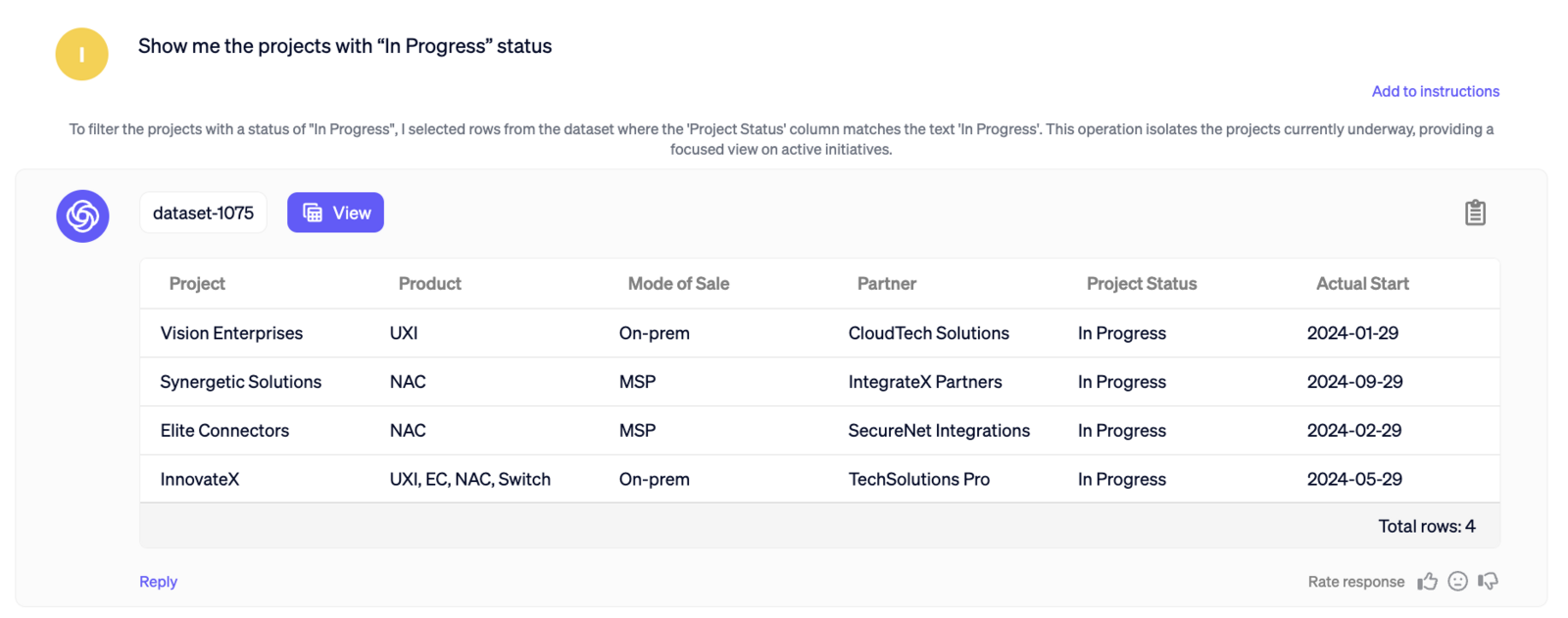

.png?alt=media&token=63e40a81-087b-452f-8574-bcb8ad247c75)
.png?alt=media&token=683bf806-2405-49a1-b3c3-64c1f8c68597)
.png?alt=media&token=60975442-d6f5-4cdc-817d-4e15e703bb4f)
.png?alt=media&token=693c898b-6afa-40e3-9592-9736baac265d)
.png?alt=media&token=1bcf473c-13e9-44ea-9d97-7dca349e3384)
.png?alt=media&token=c03e655f-252b-4bed-959e-27a521f7a431)
.png?alt=media&token=5d49dbe9-25f7-4a78-9b3e-60ef550ecebd)
.png?alt=media&token=63079fad-20af-42df-bafa-581c6420981d)
.png?alt=media&token=c97e88e3-d930-43ba-8f47-d2e1558471e8)
.png?alt=media&token=816f64ea-d63c-4ca8-b387-1c3ba1fc8fd6)
.png?alt=media&token=426d1b22-7d77-45aa-9ad3-bba565ab5f9e)
.png?alt=media&token=7bc30199-8b8c-45c3-a3f2-860833bd8f2a)
.png?alt=media&token=bf88427a-48b3-4782-975d-b5147d42f470)
.png?alt=media&token=4577c011-1534-44d6-897f-154292c2b556)
.png?alt=media&token=20c17d0f-2f63-42e1-88e2-3ee06c8e7636)
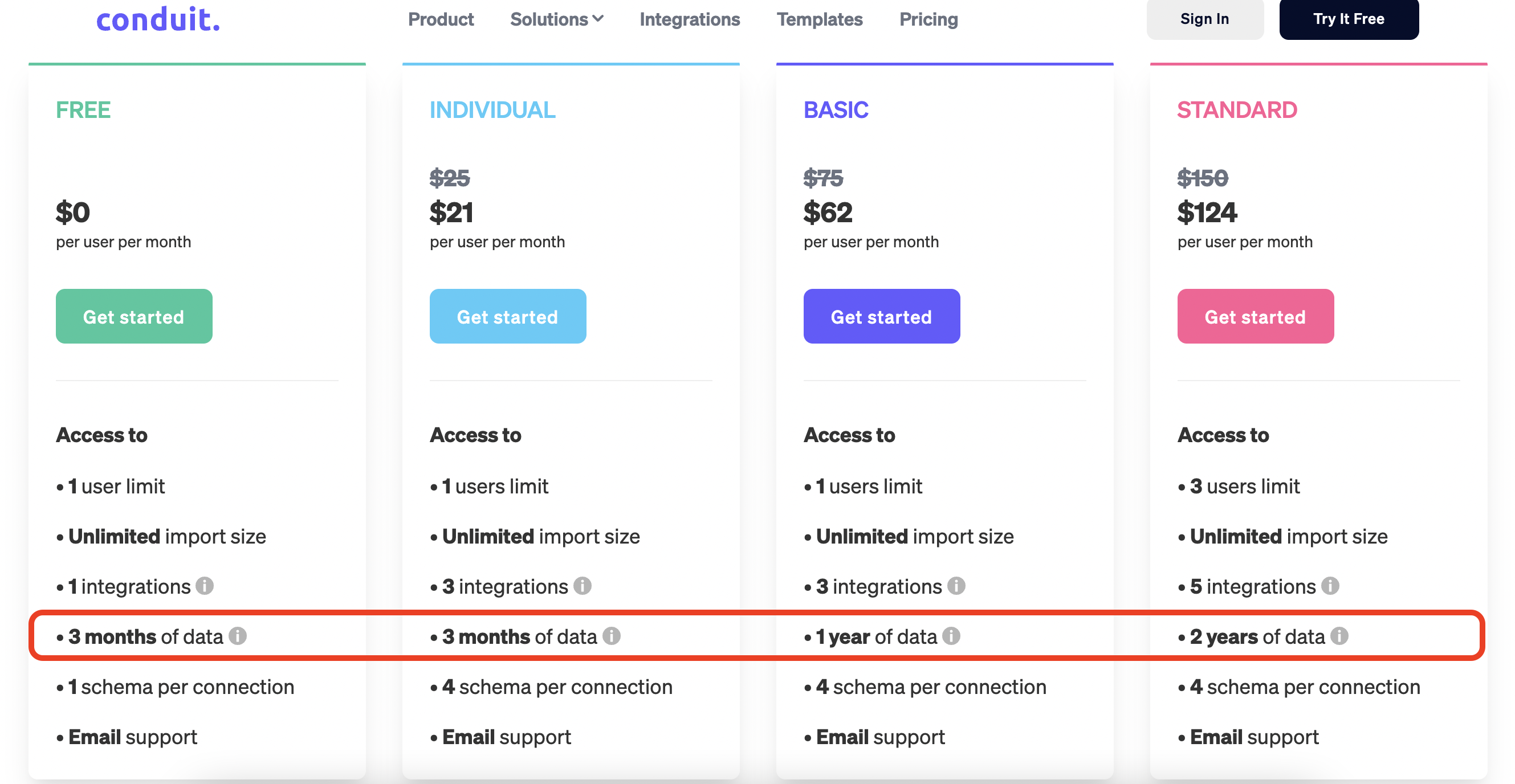


.png?alt=media&token=496f42de-efe2-4c04-b83c-ddd14182f4e3)

.png?alt=media&token=8d76c0fe-fbfd-4a73-95a6-7a8c6cc2b8c1)


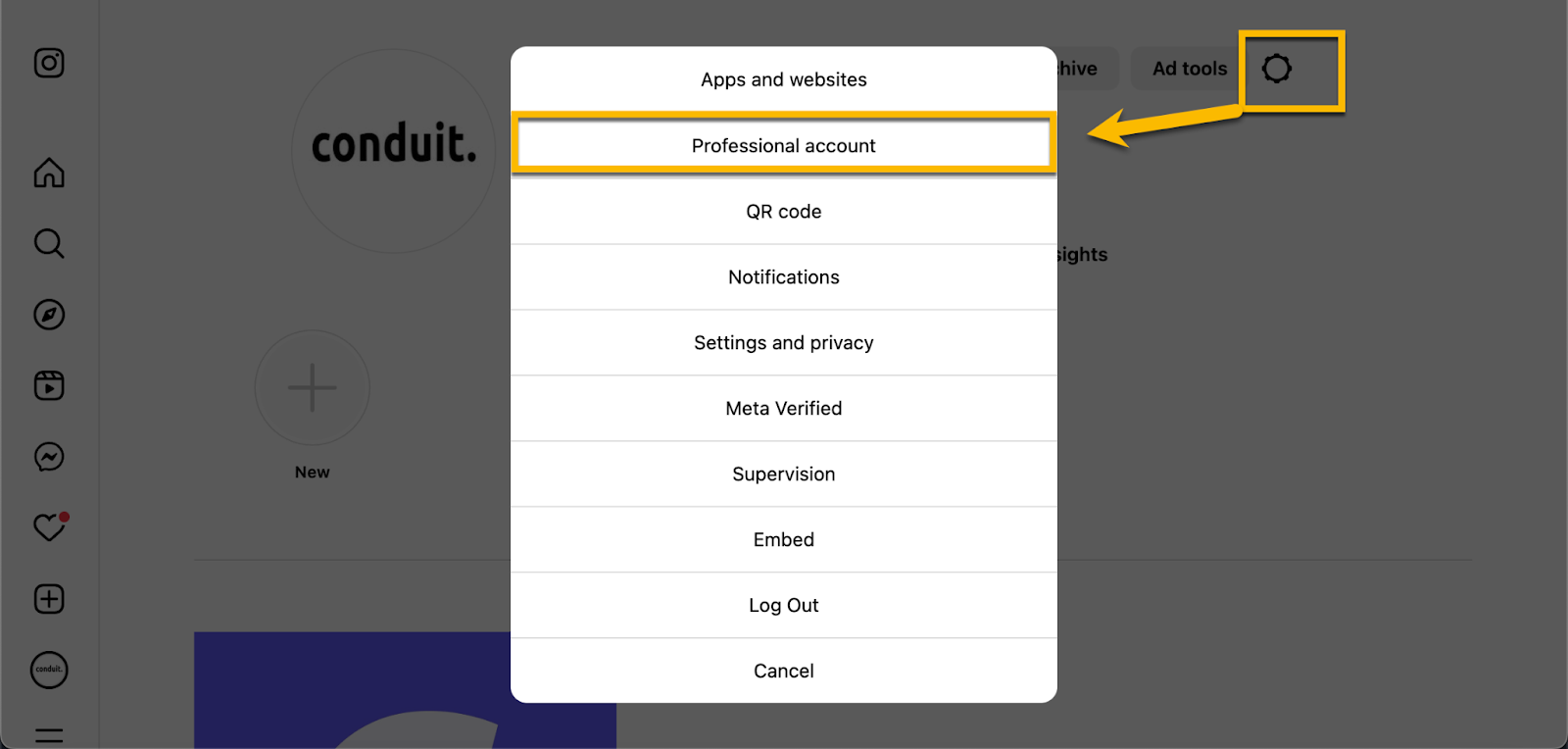
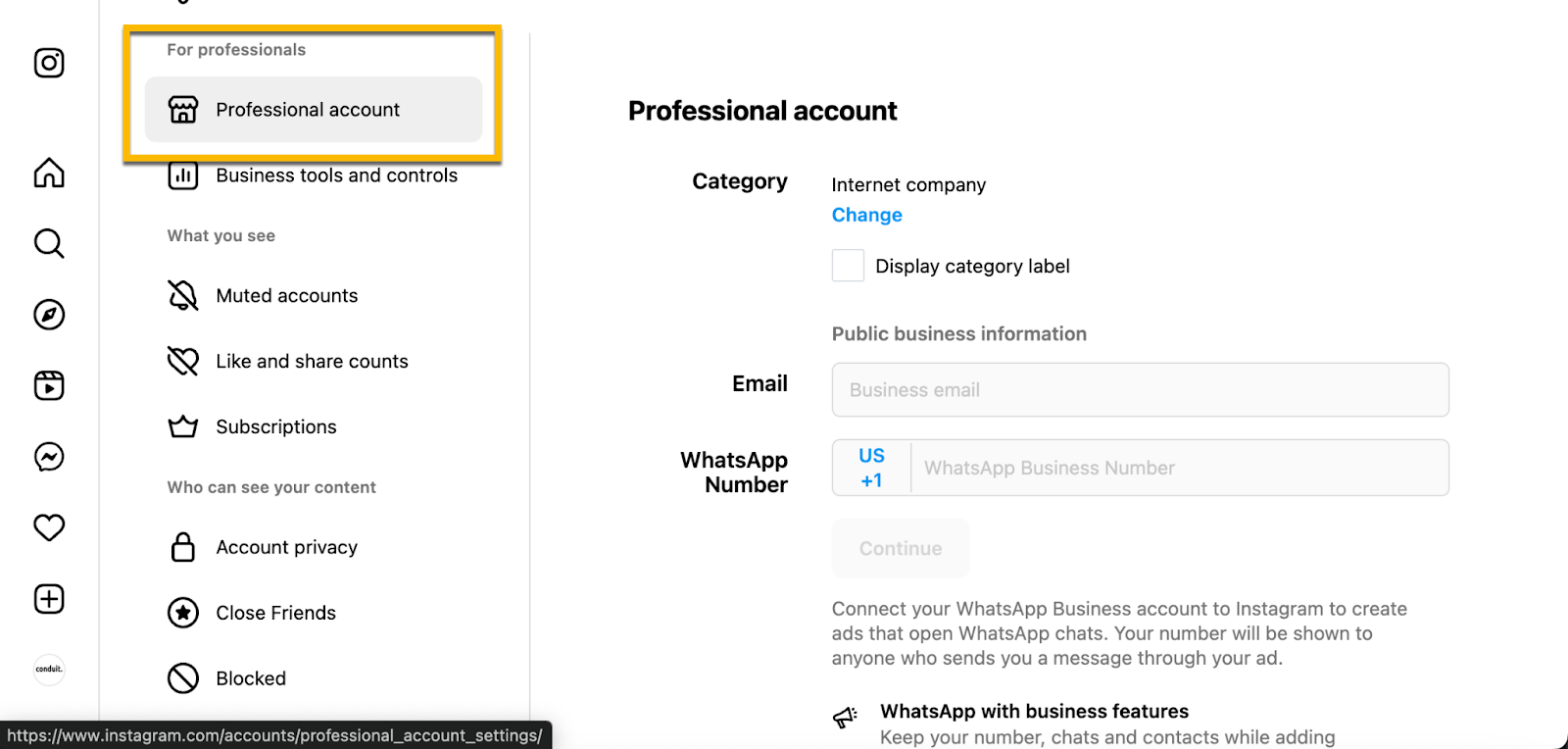
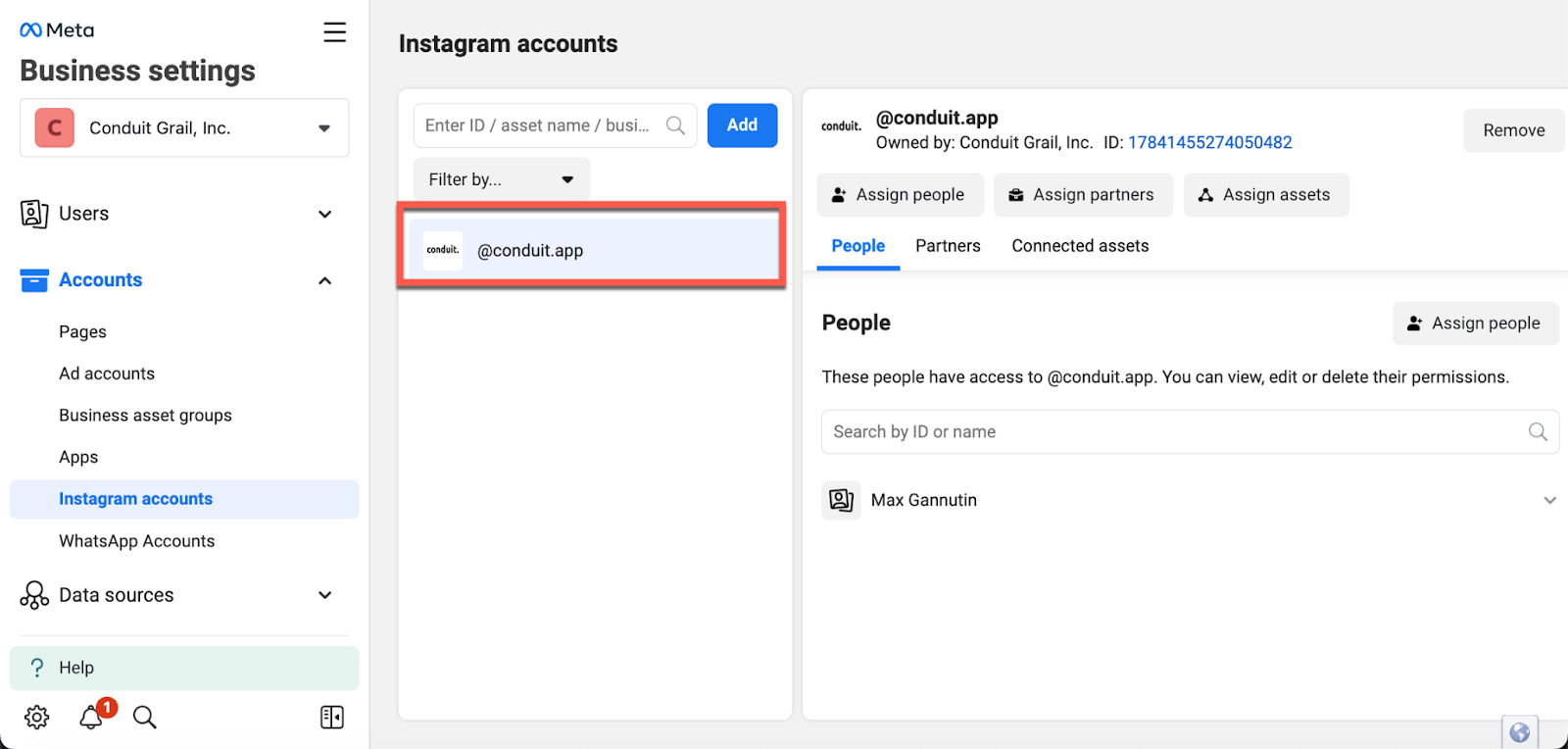
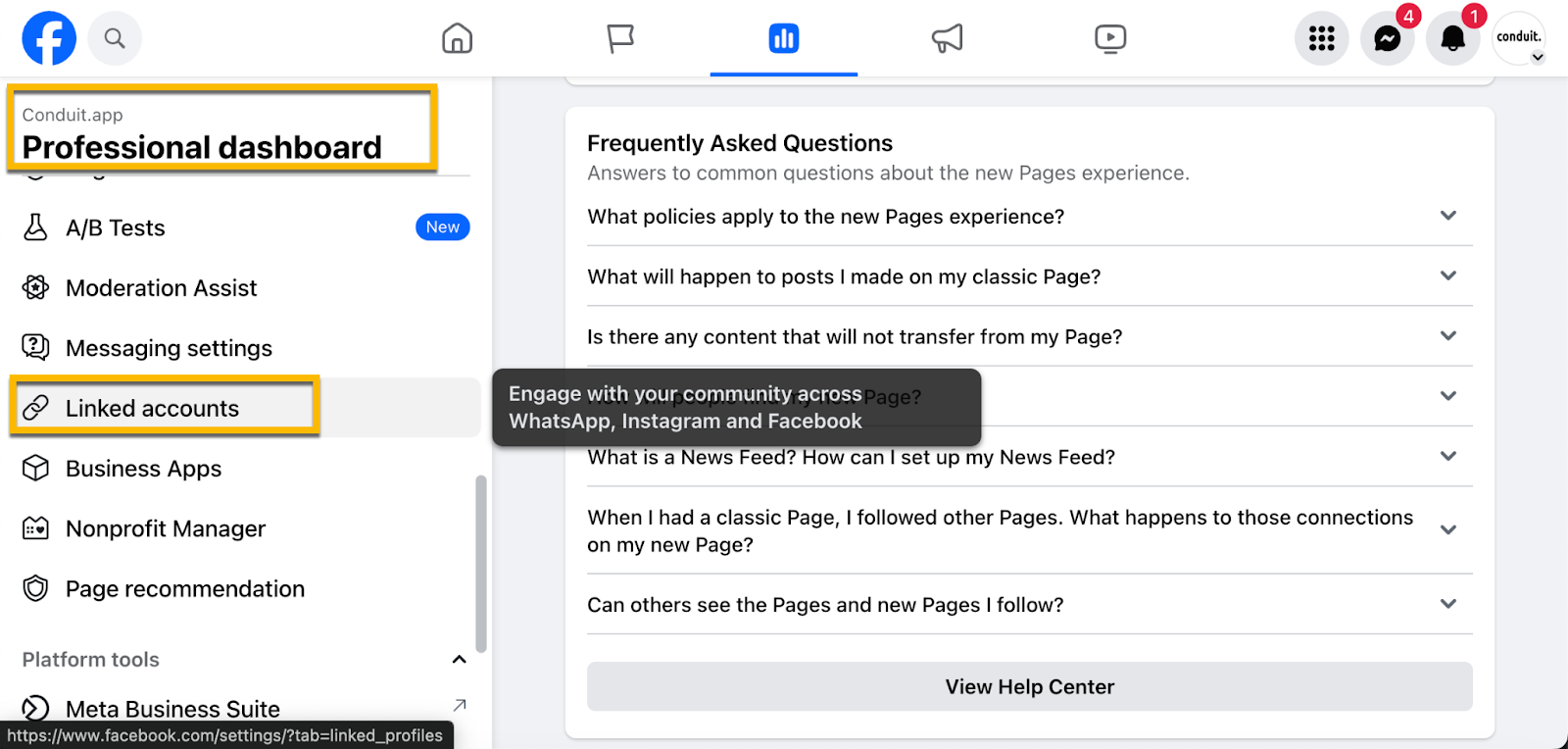
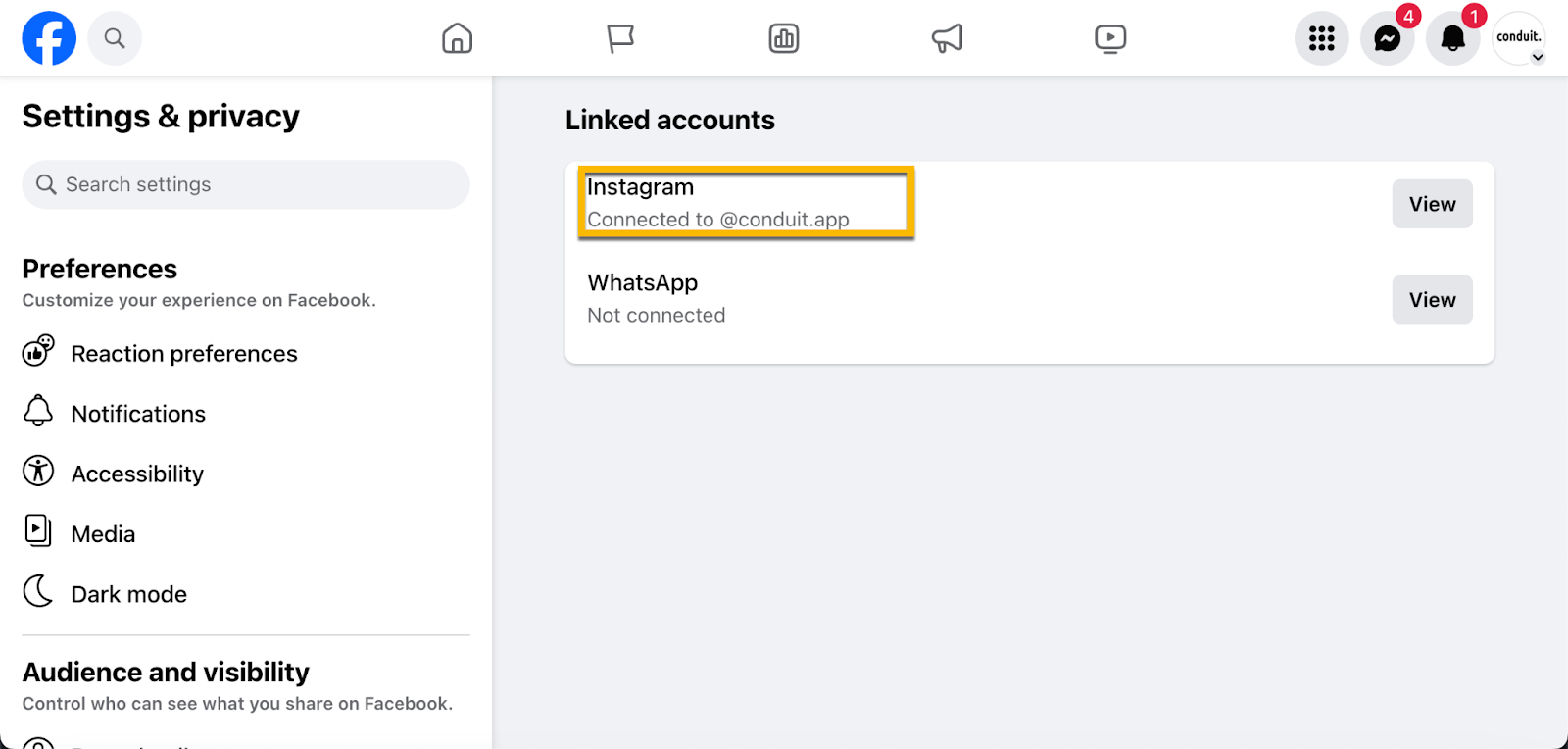

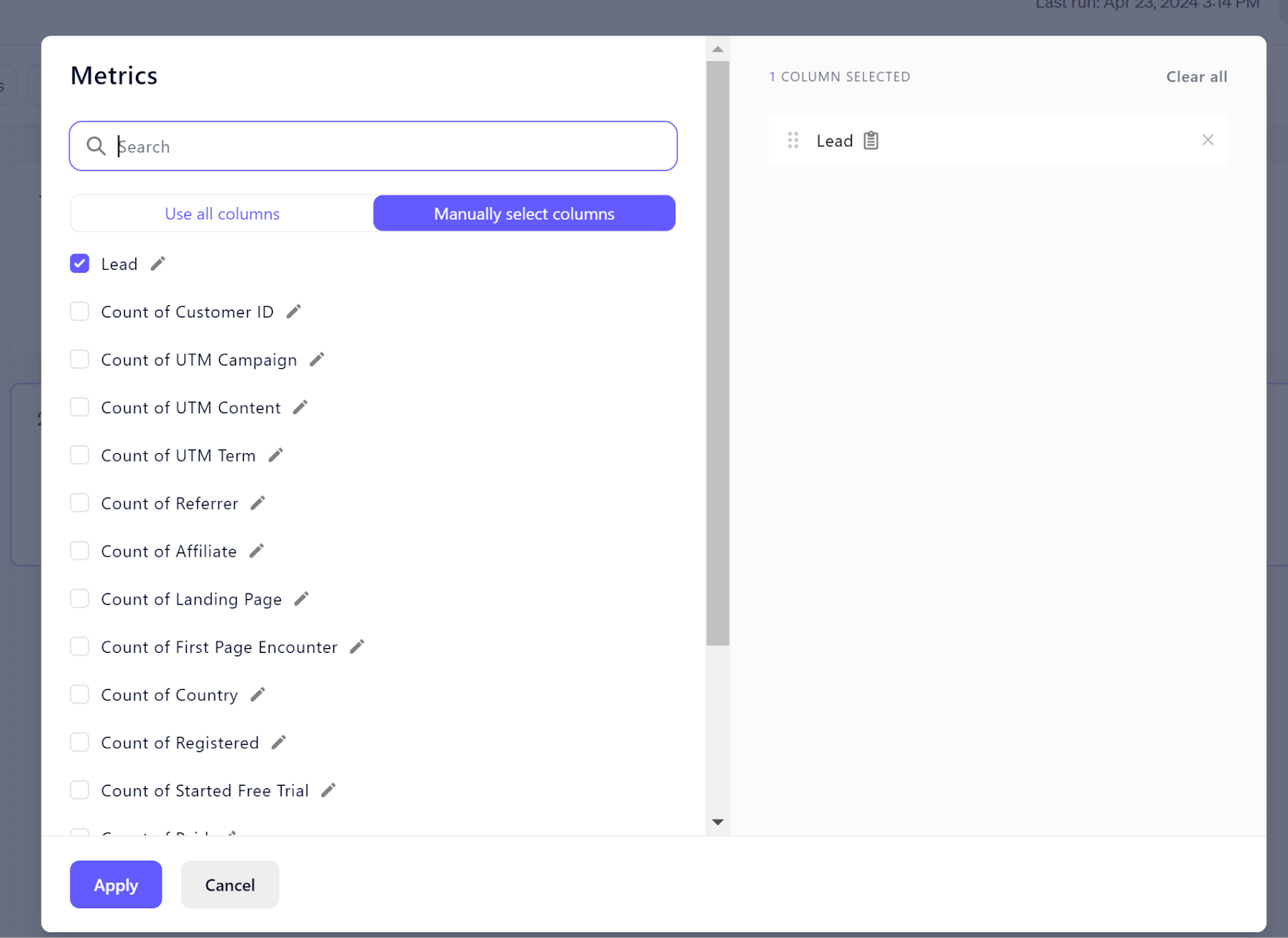


 #### Connecting the Add-On
 #### Troubleshooting the Add-On:
Here are some basic troubleshooting tips for Google Add-On
* If you use multiple Gmail accounts, log out from all of them and then log into the account you want to use with Conduit.
* Open
#### Troubleshooting the Add-On:
Here are some basic troubleshooting tips for Google Add-On
* If you use multiple Gmail accounts, log out from all of them and then log into the account you want to use with Conduit.
* Open